

Writing and autosave
This page is for anyone who writes in the Studio. It covers the entry editor: making an entry, how every change is saved without a save button, and what the editor tells you when a save can’t go through.
Write an entry
Section titled “Write an entry”-
In the sidebar, under Content, open a content type, for example Recipes.
-
Press New entry. The dialog asks for the field that names each entry (for Recipes, the Dish). Type it and press Create. The entry opens in the editor. It starts as a draft. Readers see it only once it is published.
-
Fill in the fields. Each field shows its label, (optional) when it may be left empty, and a line of help under the label: Up to 200 characters., A whole number. Rich-text fields have their own toolbar: see Rich text and images.
-
Watch the side panel. It says where the entry stands with readers and whether your last change is saved.
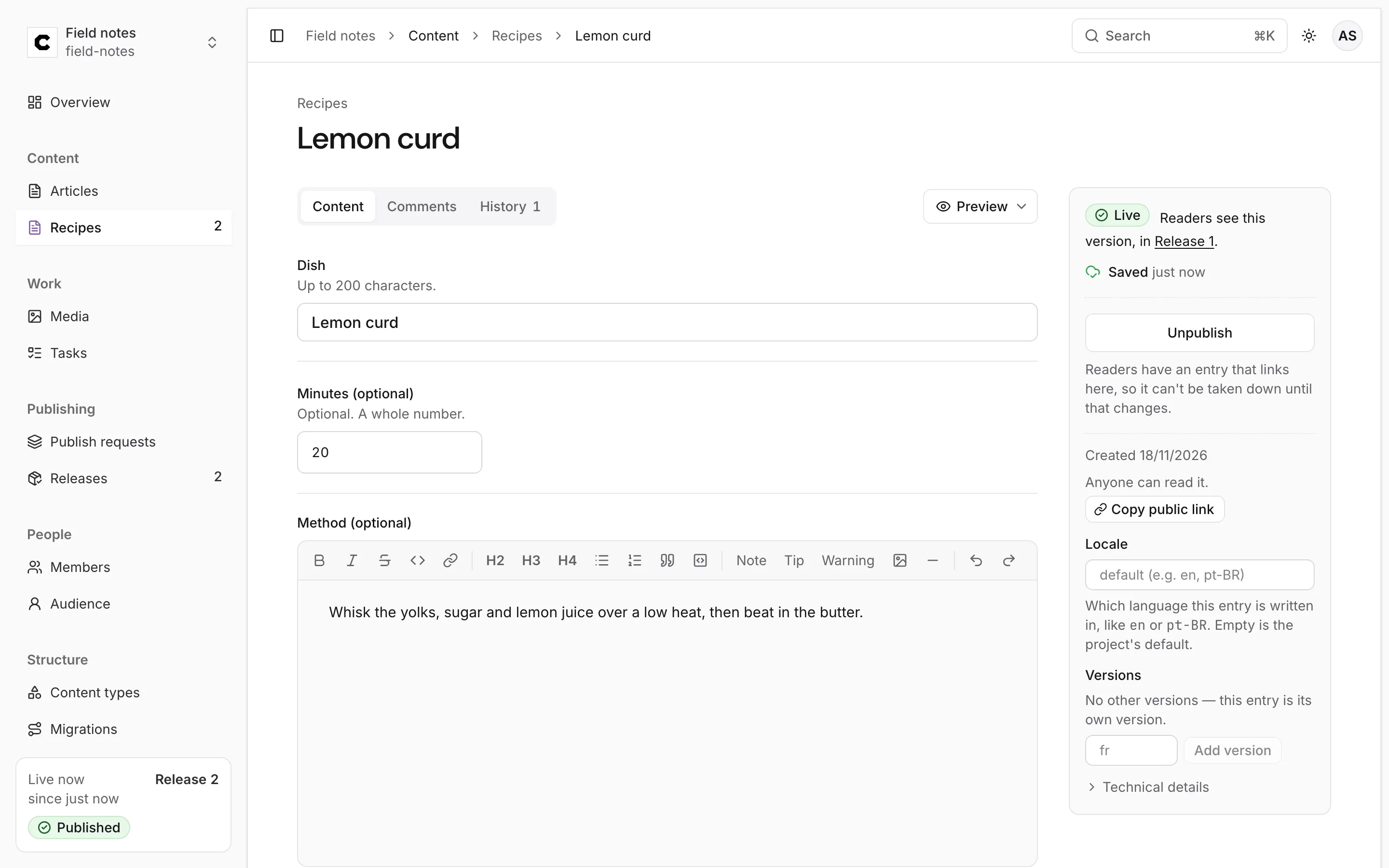
The side panel appears beside the fields on a wide screen. On a narrower one it becomes a bar fixed to the bottom of the window, with the status, the save state and the publishing buttons on one row.
Where the entry stands
Section titled “Where the entry stands”The first line of the side panel is the entry’s status with readers:
| Status | Means |
|---|---|
| Draft | It has never been published. Readers can’t see it: it isn’t published. |
| Live | Readers get exactly what you see. Readers see this version, in Release 3. |
| Live with changes | It is published, and you have saved newer changes. Readers see the version in Release 3, not your newer changes. |
Saving never changes what readers get. Only publishing does: see Publishing and review.
How autosave works
Section titled “How autosave works”There is no save button. About a second after you stop typing, the editor saves what you wrote as a new version of the entry. The line under the status says what is happening:
| You see | Means |
|---|---|
| Saved 4 minutes ago | Your last change is stored on the server. |
| Unsaved changes | You typed; the save goes in a moment. |
| Saving… | The save is on its way. |
| Not saved: … | The server refused the content, or something you typed can’t be stored yet. The message says why. |
To save at once, press Save now (on a wide screen, while there is something to save) or ⌘+S (Ctrl+S on Windows and Linux).
Every save keeps the version before it. Nothing is overwritten, so the History tab can show and restore any earlier version: see History and restore.
Your changes are kept on this device first
Section titled “Your changes are kept on this device first”Before a save leaves, the editor keeps your changes in the browser. That is what protects your work when the network or the server is away:
- Offline, or the server doesn’t answer. The status says Can’t reach the server. Your changes are kept on this device; retrying. The editor tries again after 1, 2, 5, 10 and then every 30 seconds, sending the same request each time, so a save that did arrive is never stored twice.
- You close the tab or reload. When you open the entry again, the editor says Restored unsaved changes from this device. and saves them. The browser only warns you before leaving when it couldn’t keep the changes.
- Your session ends. The status says Signed out: changes kept on this device. Follow Sign in again, come back to the entry, and the changes are saved.
- Colophon is busy. If the server asks the editor to slow down, the status says how long it will wait, and the save goes again by itself.
The copy on the device is per browser. Changes kept on your laptop aren’t visible from your phone until they are saved.
When someone else saved first
Section titled “When someone else saved first”Each save names the version it was made on. If someone else saved the same entry after you opened it, your save is refused instead of overwriting their work, and the editor shows both versions side by side:
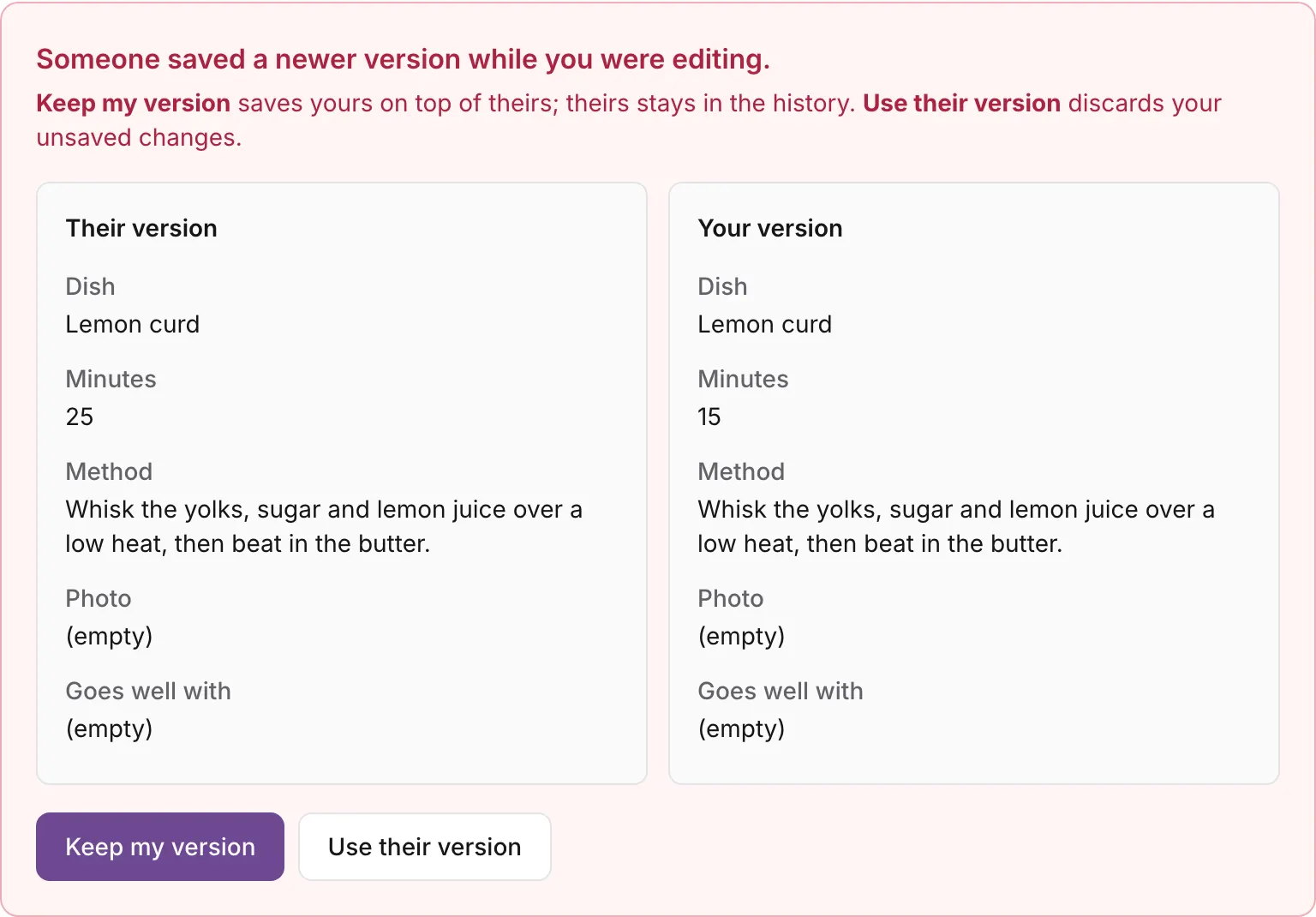
- Keep my version saves yours on top of theirs. Theirs stays in the history, so nothing is lost.
- Use their version discards your unsaved changes and carries on from theirs.
The status reads Not saved: someone else saved first until you choose. If you reopen an entry and the changes kept on your device were made on an older version, the editor asks the same question: Your unsaved changes on this device were made on an older version.
Required fields and validation
Section titled “Required fields and validation”Colophon checks every save against the content type, on the server, and refuses content that doesn’t fit. A field without (optional) after its label is required.
When a save is refused, nothing is saved. The status line says Not saved: with the reason, the field it is about is outlined, and the reason is repeated under it:
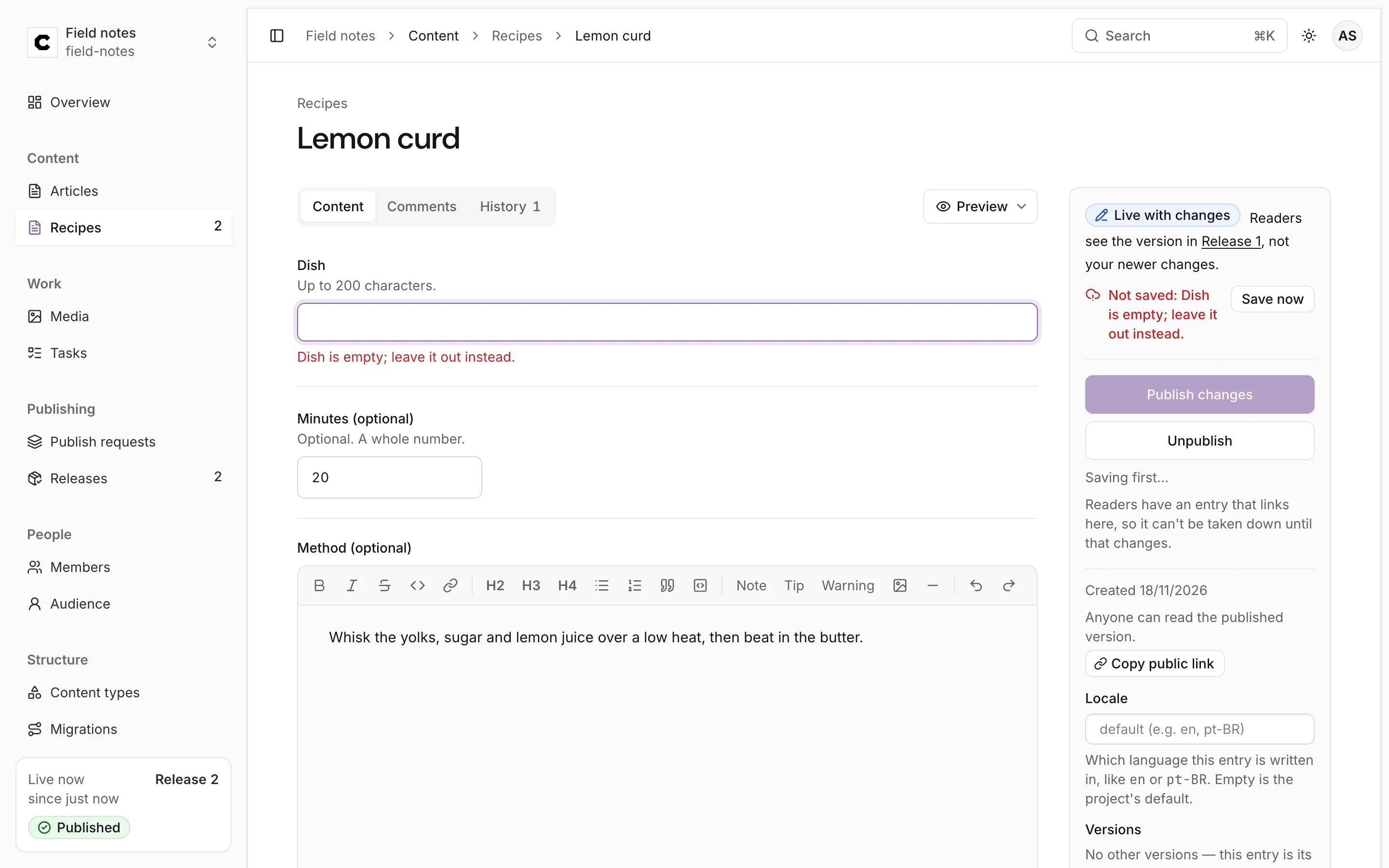
Fix the field and the next change saves as usual. The messages you are most likely to see:
| Message | What to do |
|---|---|
| Dish is empty; leave it out instead. | A text field was emptied. For a required field, type a value: it can’t be left out. |
| Minutes is a number. | Type digits only. A field with A whole number. under it takes no decimals. |
| Another entry already has this Dish. | The field is unique in its content type. Change it, or press Open “…” to see the entry that has it. |
| another entry already uses this URL name (“…”): choose another | A URL name field must be unique. Pick another. |
| Not saved: … about structured data (JSON) | The text isn’t valid JSON yet. The editor holds it on screen and sends nothing until it reads. |
Some fields appear only when another field holds a certain value. When such a field stops applying, the editor clears it and says so above the fields (… is cleared because it only applies when … is …), and shows it again when it applies.
What your role changes
Section titled “What your role changes”Your role can hide fields or make them read-only (see Members and roles). The editor says so above the fields: Your role doesn’t show …; saving keeps it as it is. or Your role can read but not change …. A hidden field is never sent, so your saves can’t erase it.
Deleting an entry
Section titled “Deleting an entry”The Studio has no delete button yet. Deleting is done through the management API
(DELETE …/collections/{collection}/entries/{entry}, see the API reference) and
leaves a tombstone. It is refused while the entry is published (take it down first), while another
entry links to it (in a draft or published), or while an unpublished publish request includes it.
Was this page helpful?
Either answer opens a short issue on GitHub, so you can say what worked or what was missing.
Colophon home · the product, its blog and how to try it.