

Media library
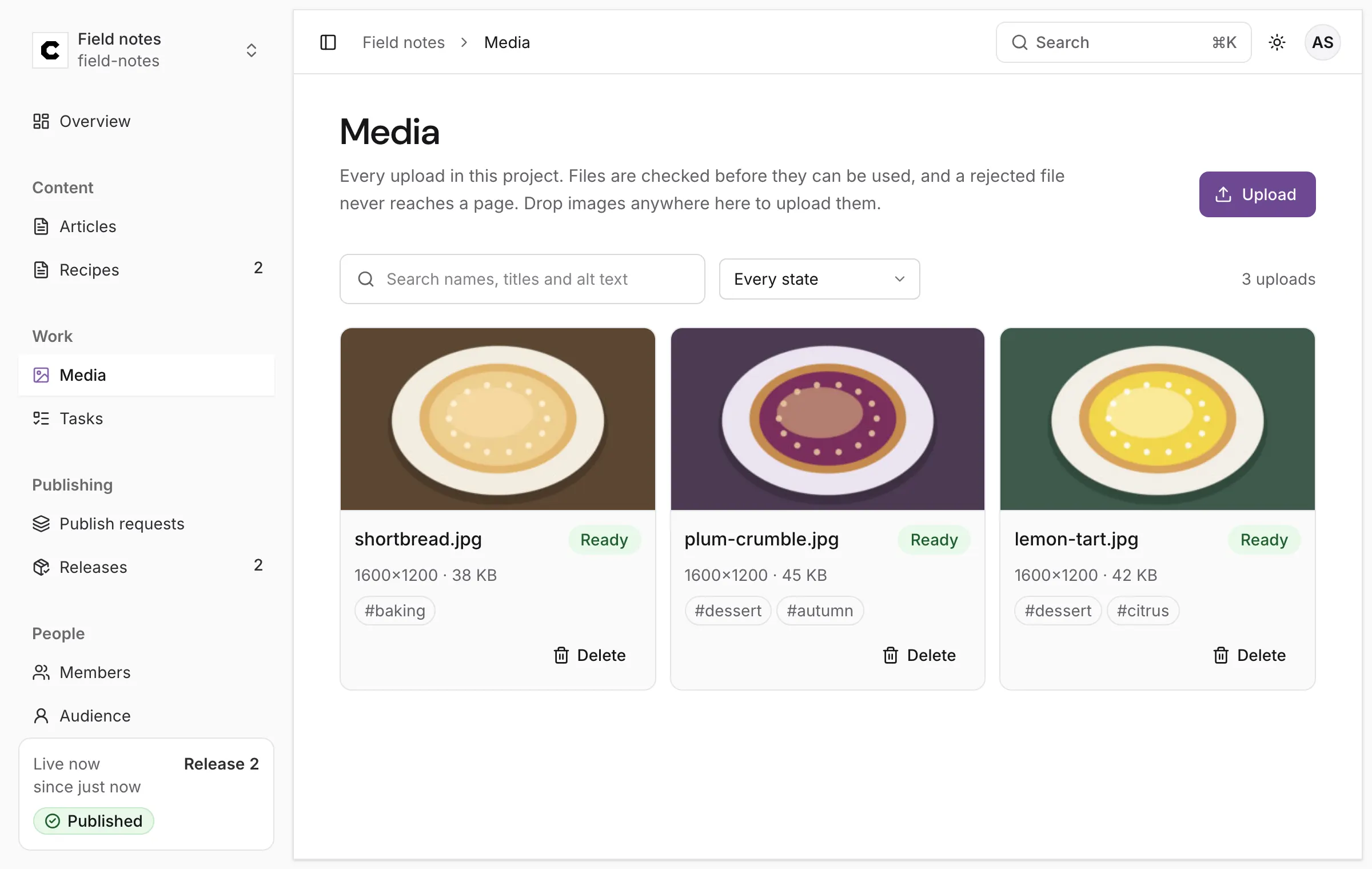
The media library holds every image uploaded to a project. Writers pick from it for image fields and for images in rich text. This page is for anyone who uploads and looks after those images.
Open it with Media in the sidebar, under Work.
Upload images
Section titled “Upload images”-
Press Upload and choose one or more files, or drop them anywhere on the page (Drop images to upload them).
-
Each file goes into a queue that says how far it got. Up to 50 files can wait at once.
-
A new upload shows Checking… and becomes Ready a few seconds later.
Colophon accepts PNG, JPEG and WebP images of up to 20 MB, with a file name of 1 to 200 characters. Uploading needs a role that may create entries.
The check before an image is usable
Section titled “The check before an image is usable”Nothing you upload reaches a page until Colophon has checked it. The server looks at the file’s real contents, not its name, decodes the image within safe limits, and writes a clean copy without hidden data such as camera location. Then the upload is Ready: Checked and ready to use in any entry.
| State | Means |
|---|---|
| Checking… | Still being checked. It can be chosen once it is ready; this usually takes a few seconds. |
| Ready | Checked; it can be used and published. |
| Rejected | Colophon couldn’t accept this file, so it can’t be used. The card says Can’t be shown. Upload a different file. |
| Deleting…, Deleted | See Delete an upload. |
An entry can name an upload that is still being checked, but it can’t be published until the upload is ready: the publish request is refused until then. A rejected file never reaches a page.
Describe an upload
Section titled “Describe an upload”Press an upload’s card to open its details.
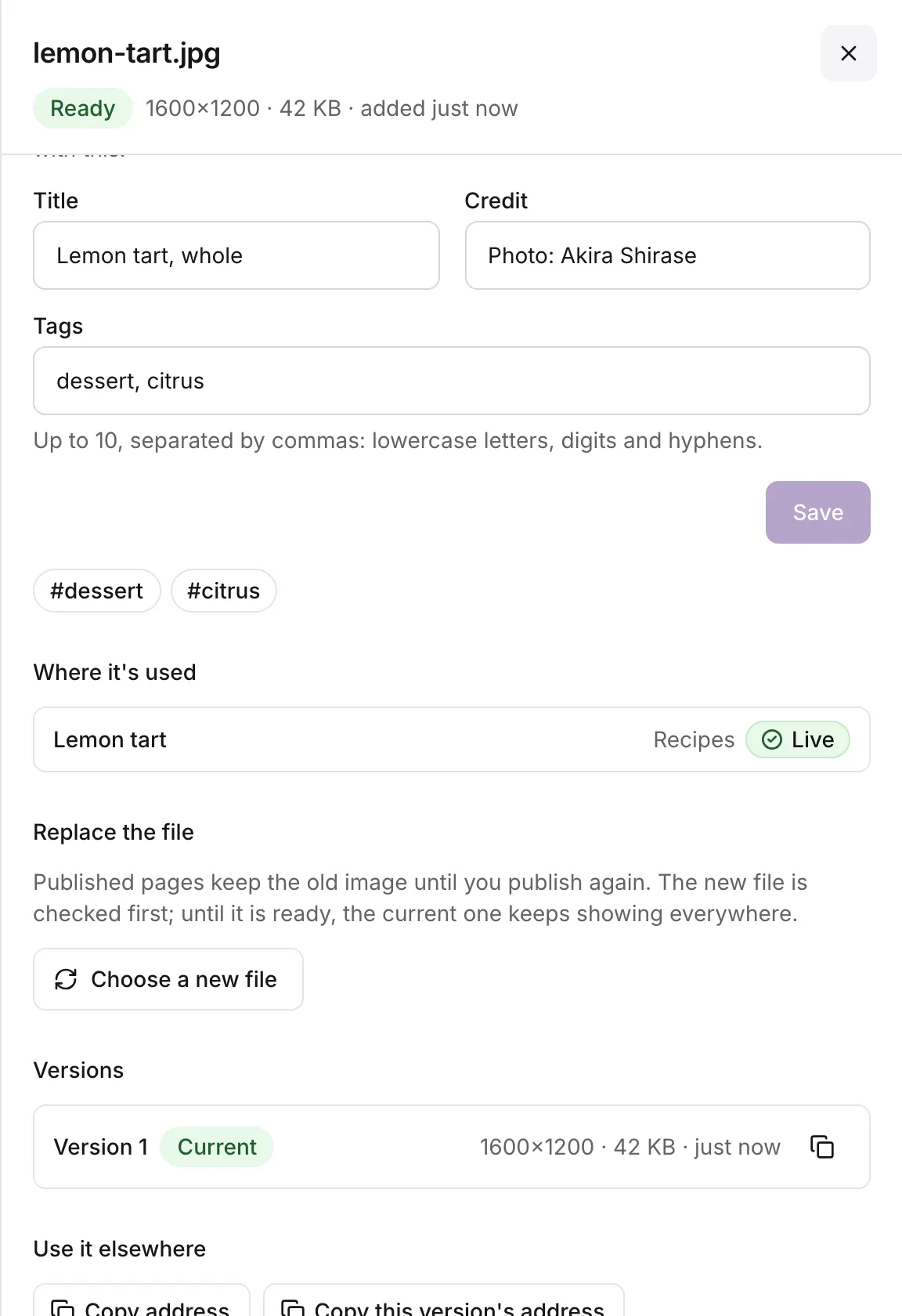
Under Description:
- Alt text: What the picture shows, for people who can’t see it. Up to 300 characters. An image put into rich text starts with this alt text, and the writer can change it there.
- Title: a name for people, up to 200 characters.
- Credit: who made it, for example Photo: Akira Shirase, up to 200 characters.
- Tags: Up to 10, separated by commas: lowercase letters, digits and hyphens.
Press Save. If someone else changed the details while you were editing, the sheet says Someone changed this upload’s details while you were editing and offers Load their changes or Keep mine.
Find an upload
Section titled “Find an upload”The search box looks in names, titles and alt text. The state menu shows Every state, Ready, Being checked, Rejected or Deleted. Press a tag on a card to show only uploads with it.
Where it’s used
Section titled “Where it’s used”Where it’s used lists every entry that names the upload, in an image field or in rich text, each with its content type, marked Live when its published version uses the upload or Draft when only a draft does. Nothing uses this yet. It can be deleted. means what it says.
Replace an upload with a new version
Section titled “Replace an upload with a new version”Replacing keeps the upload, its id, its description and every place that uses it, and gives it new bytes.
-
Open the upload and, under Replace the file, press Choose a new file.
-
The new file is checked like any upload. Until it is ready, the current one keeps showing everywhere. Under Versions, the new one becomes Current once it is checked.
-
Published pages keep the old image until you publish again. If published entries use the upload, the sheet offers Ask to publish it (or Ask to publish these 3): it makes one publish request for those entries’ current drafts and sends it for review. Any unpublished edits in those entries go with it.
Each release records the exact version of every image it published, so a release, and a reader who pins it, always shows the image it was published with.
Addresses
Section titled “Addresses”Under Use it elsewhere, Copy address copies an address that always serves the newest version. Copy this version’s address copies one that never changes, even after a replacement. Uploads are served publicly, without signing in.
Renditions
Section titled “Renditions”When an image is checked, Colophon also makes smaller copies of it, in the same format: w320, 320
pixels wide, and w1280, 1280 pixels wide. Each is made only if the original is wider. The library
shows the 320-pixel copy as the thumbnail. Your site gets each published image’s address, size and
renditions in the delivery API’s media: see Images.
Delete an upload
Section titled “Delete an upload”-
Press Delete on the upload’s card, or Delete… at the end of its details.
-
Confirm with Delete, or press Keep it.
The file leaves the library in stages: it stops being served at once and the stored bytes go shortly after. The card shows Deleting…, then Deleted. The record stays, so its history is still readable.
Deleting is refused while any entry still names the upload, published or draft. Remove it from those entries first: Where it’s used lists them. Deleting needs a role that may delete content, which of the built-in roles is only the Owner.
Was this page helpful?
Either answer opens a short issue on GitHub, so you can say what worked or what was missing.
Colophon home · the product, its blog and how to try it.