

Scheduling
A schedule publishes an approved publish request later, at a time you choose, exactly as if you pressed Publish then. This page is for whoever publishes: scheduling needs the same permission as publishing.
Schedule a publish request
Section titled “Schedule a publish request”-
Get the request approved. Until then its Schedule panel says Once it’s approved, it can be scheduled to publish at a time you choose. See Publishing and review.
-
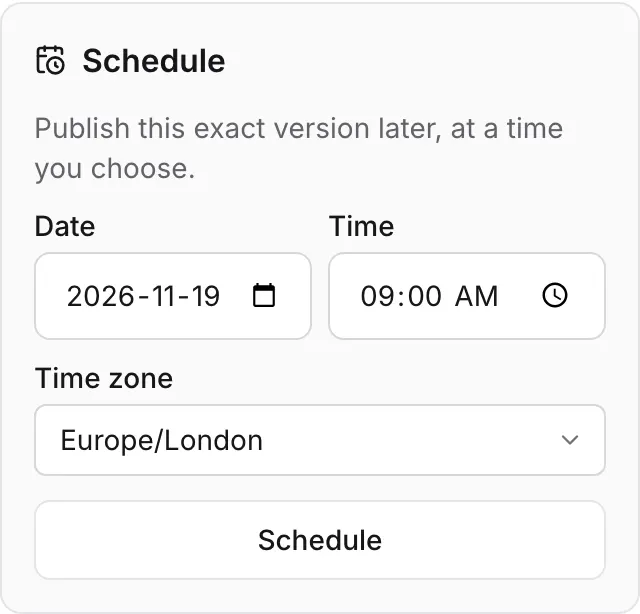
Open the request. Under Schedule (Publish this exact version later, at a time you choose.), set the Date, the Time and the Time zone. The panel suggests tomorrow at 09:00 in your own time zone, marked (yours).
-
Press Schedule.
The panel now says when it publishes, in the time zone you chose and, if that isn’t yours, where you are:
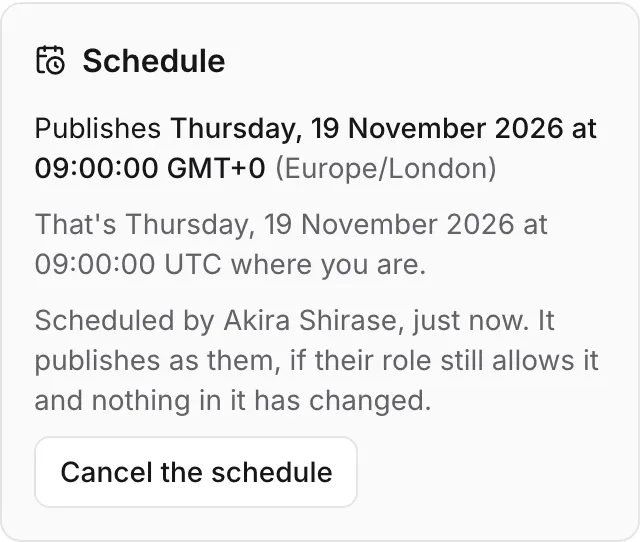
The Releases page lists every pending schedule, and the last ones that ran, under Scheduled.
Why a time zone
Section titled “Why a time zone”A schedule keeps the local time and the named time zone you chose (Europe/London, not an offset like
+01:00). 09:00 in London stays 09:00 in London whether the clocks are on summer time or not, and
your colleagues see the moment in their own time too.
When the clocks change
Section titled “When the clocks change”Twice a year, many time zones have a time that happens twice (the clocks go back) or not at all (they go forward). Colophon never guesses which moment you meant. If the time you chose is one of those, Schedule asks:
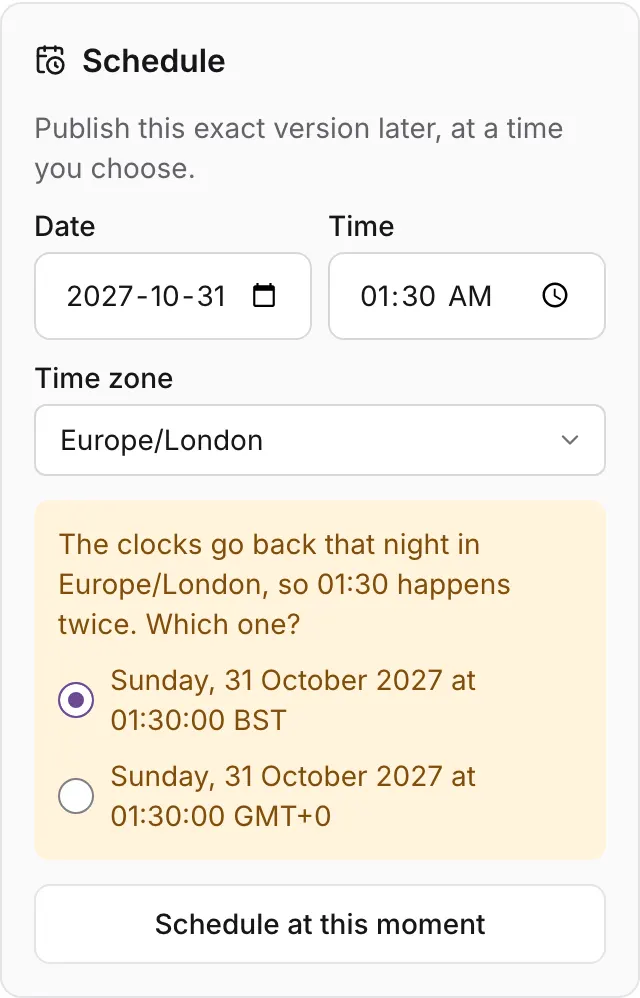
- The clocks go back that night in …, so 01:30 happens twice. Which one? Pick the first or the second 01:30.
- The clocks go forward that night in …, so 01:30 doesn’t happen. Publish at: pick the moment just before or just after the gap.
Then press Schedule at this moment. Changing the time zone clears the question.
The limits
Section titled “The limits”- The time must be in the future, and at most a year and a day ahead.
- It must be before the approval expires. An approval lasts seven days, so a request approved today can be scheduled up to seven days from the approval; for a later date, have it approved closer to the time. Otherwise: The approval expires before that time; schedule it earlier, or have it approved closer to the time.
- A request has one pending schedule at a time: It is already scheduled. Cancel that schedule to choose another time.
When it runs
Section titled “When it runs”At the chosen moment Colophon publishes the request as the person who scheduled it, with every check a publish makes, on top of whatever is live then. The schedule’s history in the panel then says how it went:
| It says | Means |
|---|---|
| Published on time, as release 12 | Done. |
| Published late, as release 12, marked delayed | It started more than a minute after the chosen time, for example because Colophon was stopped then. It still published. |
| Not published: … | It was blocked, and published nothing. The reason follows. |
The Scheduled list on Releases says the same with a status badge: Scheduled, Published · Release 12, Published late · Release 12, Not published (with the reason under it) or Cancelled.
A schedule is blocked, never half-done, when publishing would be refused at that moment: an entry in the request was saved again, the approval expired, the person who scheduled it can no longer publish (their role changed or they left the project), or a value another published entry holds, such as a URL name, is in the way. Fix the cause, get the request approved again, and schedule it again.
Cancel a schedule
Section titled “Cancel a schedule”Press Cancel the schedule. The person who scheduled it, or anyone who may publish the request, can cancel it; anyone else sees Its author or someone who can publish it can cancel it. Cancelling never undoes a release: a schedule that already published stays published.
Was this page helpful?
Either answer opens a short issue on GitHub, so you can say what worked or what was missing.
Colophon home · the product, its blog and how to try it.