

Linked entries
A Link to entries field points from one entry to others: a recipe’s Goes well with, an article’s author. This page is for writers who fill those fields, and explains the rules that keep links from breaking on your site.
Add a link field
Section titled “Add a link field”Owners and developers add one in the content type, under Content types → the type → Add a field → Link to entries (Points to entries of another type, like an author.). They choose:
- Links to: the content type whose entries it holds. It can be the same type.
- How many: One entry, or A list of up to a number between 1 and 100.
- Mirrored on … by (optional): a field on the other type that keeps the link back. See Two-way links.
Choose entries
Section titled “Choose entries”-
In the entry editor, find the field. Its search box says what it searches, for example Search Recipes by dish.
-
Type part of the title. Matching entries are listed with their status: Draft, Live or Live with changes; one already chosen says Chosen.
-
Press one to add it. In a list, add as many as the field allows.
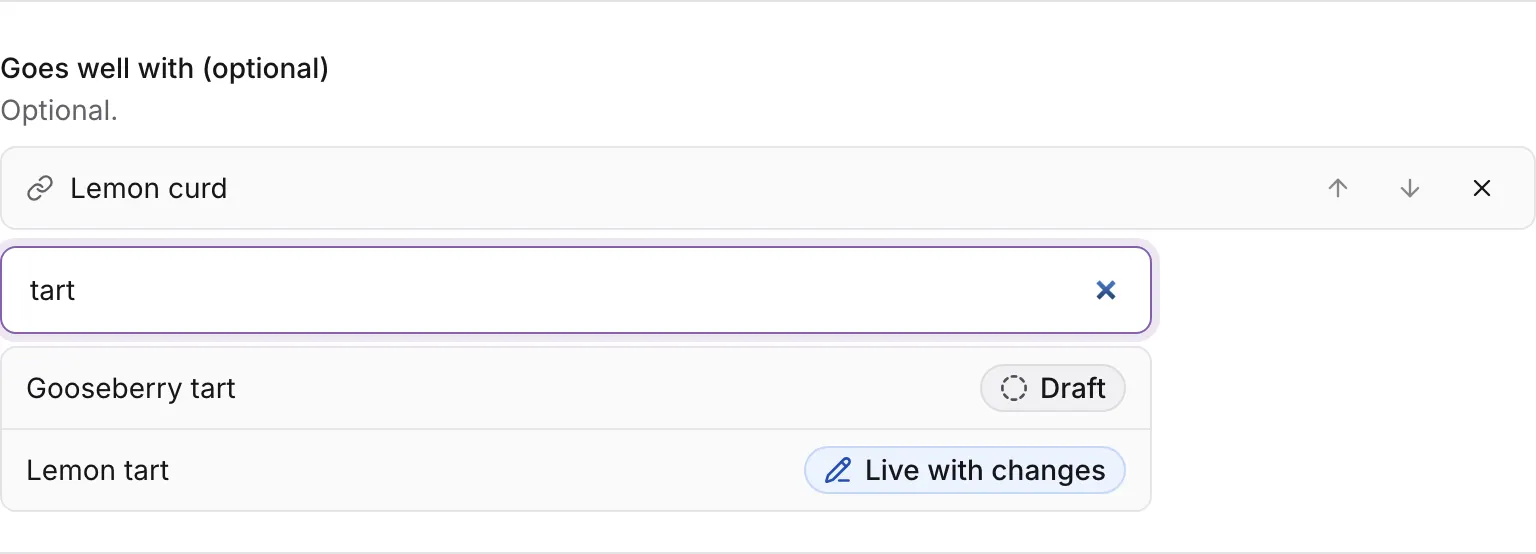
Chosen entries show under the field label. Use the arrows to change their order and the cross to remove one. Removing a link doesn’t change the other entry, unless the field is mirrored. If a chosen entry no longer exists, it shows Not found: remove it.
If your role can’t read the type the field links to, the field says Your role can’t see Recipes, so you can’t choose one here.
Linked from
Section titled “Linked from”On the Content tab of a linked entry’s editor, under its fields, Linked from lists every entry that links to it. It isn’t repeated on the other tabs:

Each line names the entry, its content type and the field, and says whether the link is published: Readers see this link when the linking entry’s live version holds it, In a draft when only a draft does. An entry your role can’t read shows as An entry you can’t see.
Two-way links
Section titled “Two-way links”Linked from is read-only: it shows links, but you change them on the entry that holds them. For a link both sides edit, the content type’s field can be mirrored: a recipe’s Goes well with kept in step with the same field on the other recipe, or a book’s Author with the author’s Books. A save on one side writes the other side in the same change, so the two never disagree. To offer a mirror, the other type needs a link field back first.
Why a linked entry can’t go from under you
Section titled “Why a linked entry can’t go from under you”Colophon never lets readers get a link to an entry they can’t get. That gives three rules.
Publishing an entry that links to a draft
Section titled “Publishing an entry that links to a draft”You can’t publish an entry that links to an entry readers don’t have. The publish stops and names it: “Lemon tart” links to “Lemon curd”, which isn’t published yet. Publish “Lemon curd” first, or in the same publish request. On the publish request, Make a publish request that includes “Lemon curd” builds one with both.
Taking down an entry that a published entry links to
Section titled “Taking down an entry that a published entry links to”You can’t take down an entry while a published entry links to it. Its side panel warns before you try: Readers have an entry that links here, so it can’t be taken down until that changes. Pressing Unpublish asks first:
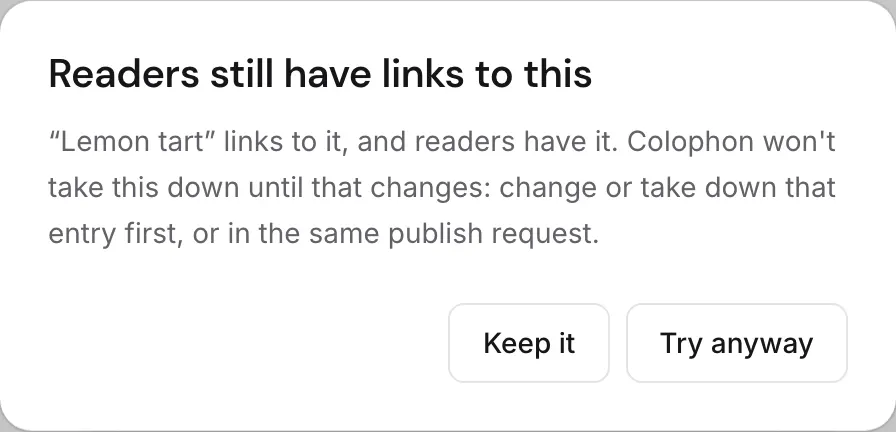
Keep it leaves everything as it is. Try anyway sends the request, and Colophon refuses it if the link is still published: “Lemon curd” is still linked from “Lemon tart”, which readers have. Change or take down “Lemon tart” first, or in the same publish request. Either publish Lemon tart without the link first, or take both down in one publish request.
Links in drafts don’t block anything: only what readers have counts.
Deleting an entry that is linked
Section titled “Deleting an entry that is linked”Deleting is done through the management API (the Studio has no delete button yet: see
Writing and autosave). It is refused with 409 while any entry
links to it, in a draft or published: other entries still link to this one: remove those links first,
then delete it. The answer lists the linking entries your role can read.
What your website gets
Section titled “What your website gets”A link is stored as the linked entry’s id, or a list of ids, in the order you chose. The delivery API only ever returns links to entries that are published in the same release, because publishing refuses anything else.
Was this page helpful?
Either answer opens a short issue on GitHub, so you can say what worked or what was missing.
Colophon home · the product, its blog and how to try it.