

Publishing and review
Saving never changes what readers get. Publishing does, and in Colophon it always goes through a publish request: a list of exact versions of entries that someone approves, and that become the next release when published. This page is for writers, reviewers and whoever publishes.
Publish, or Ask for review
Section titled “Publish, or Ask for review”What the editor’s side panel offers depends on your role:
- Publish (or Publish changes for an entry that is Live with changes) when your role may approve and publish, like the built-in Owner and Publisher. One press makes a publish request for the saved version, approves it as your own recorded review and publishes it: Goes live for readers at once, as the next release. Your approval is recorded.
- Ask for review when your role may edit but not publish, like Editor and Developer: Someone who can publish approves it and puts it live.
The button waits for your changes to be saved (Saving first…): only a saved version can be published. On a Live entry with nothing new to publish there is no publish button; it comes back as Publish changes as soon as you save a change, including a change made right after publishing.
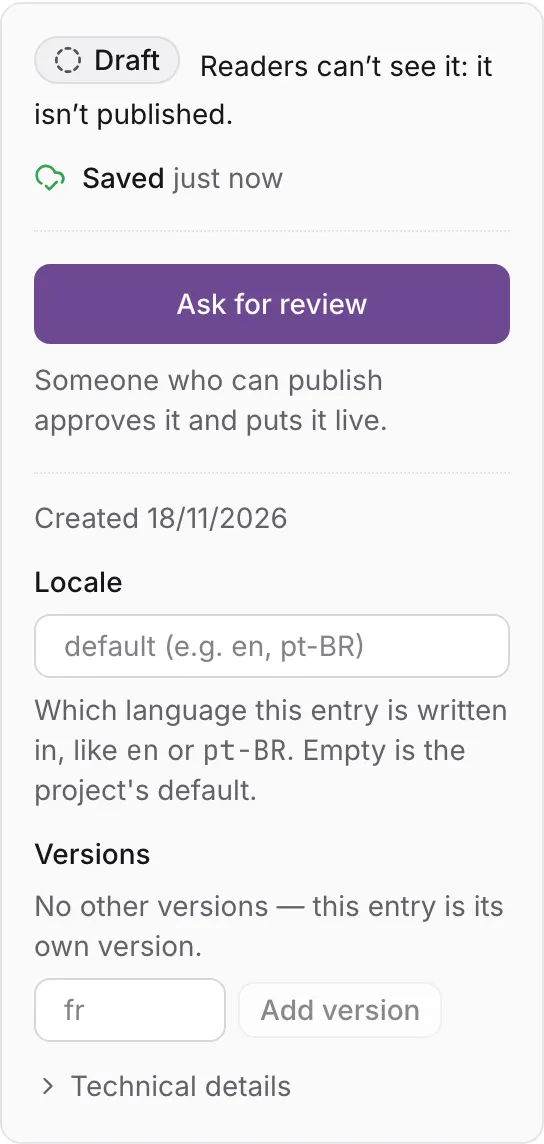
After Ask for review, the panel says Sent for review. with See the publish request. After Publish, it says Live as Release 4. Its receipt shows what reached your website.
If the project has review stages and one of them needs someone other than the sender, Publish stops after your own approvals and says which stage still waits: Not published: It still needs approval at Fact check — someone other than whoever sent it for review has to decide it. The request is kept; Open the publish request takes you to it.
To publish several entries together, tick them in the content type’s list and press Publish 3 (or Ask for review of 3), or gather them on the Publish requests page.
Publish requests
Section titled “Publish requests”Open Publish requests in the sidebar, under Publishing. The number beside it counts requests waiting for review.
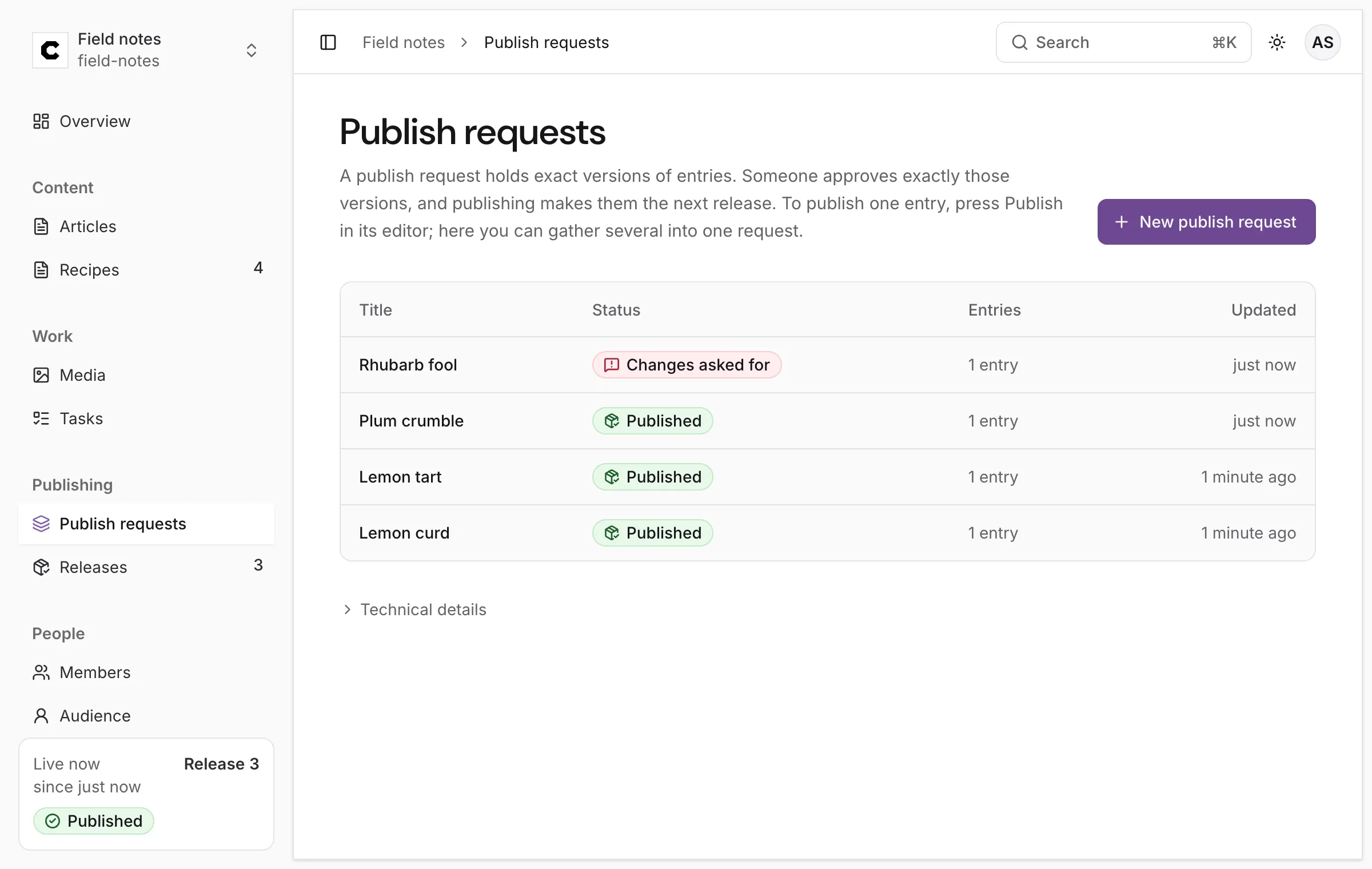
New publish request gathers several entries into one: give it a Title, tick the entries to publish (each publishes its current version), tick Unpublish beside live entries to take them down, and press Create publish request. Later edits don’t change it until you update it.
A request is in one of these states:
| State | Means |
|---|---|
| Not sent for review | Made, not yet sent. Someone who can edit its entries presses Ask for review. |
| In review | Sent; a reviewer decides. |
| Changes asked for | A reviewer pressed Request changes. |
| Edited since: update it | An entry in it was saved again after it was made. |
| Approved | Every approval it needs is in, on exactly these versions. |
| Approval expired | An approval lasts seven days. It needs approving again. |
| Published | It went live as a release. |
Review a publish request
Section titled “Review a publish request”For reviewers: the built-in Publisher and Owner, or any role that may approve.
-
Open the request. The bar under its title shows the progress: Prepared, Sent for review, Approved, Live.
-
Read Entries. Each is marked New, Updated or Taken down, and Changes shows what readers would get compared with what they have now. Preview on your site shows the whole request on your website: see Preview.
-
In Review, choose which stage you are Deciding if the project has stages, and write a Comment (optional).
-
Press Approve this version, or Request changes.
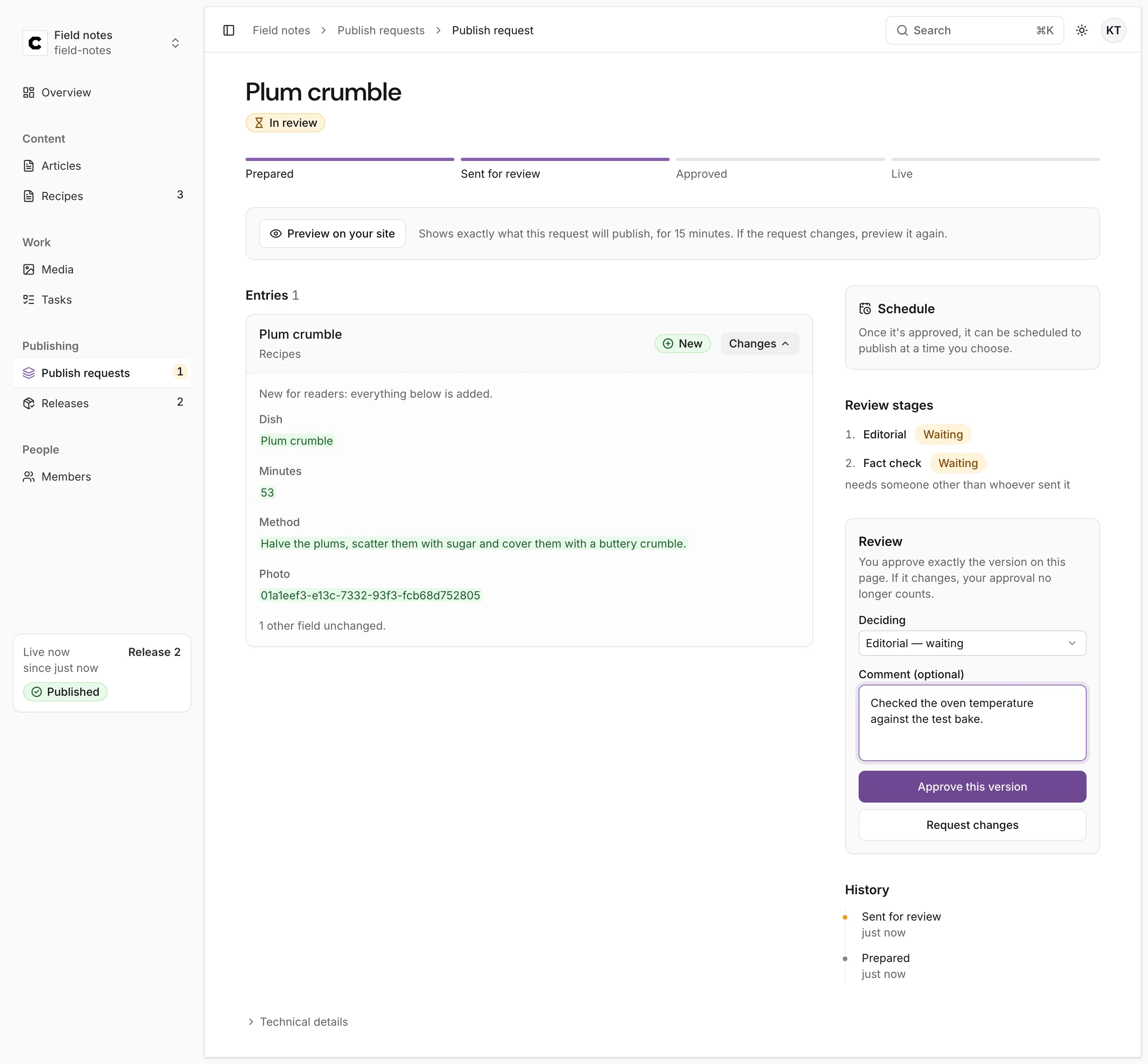
You approve exactly the version on this page. If it changes, your approval no longer counts. When someone saves an entry in the request again, the request shows Edited since: update it and the entry edited since it was added. Someone who can edit presses Update to the latest versions, and the request needs reviewing again.
History, on the right, records every step: who approved or asked for changes, at which stage, with their comment; on an earlier version marks a review of versions the request no longer holds.
Publish an approved request
Section titled “Publish an approved request”Once the request is Approved, someone whose role may publish presses Publish. The request becomes the next release and the progress bar reaches Live.
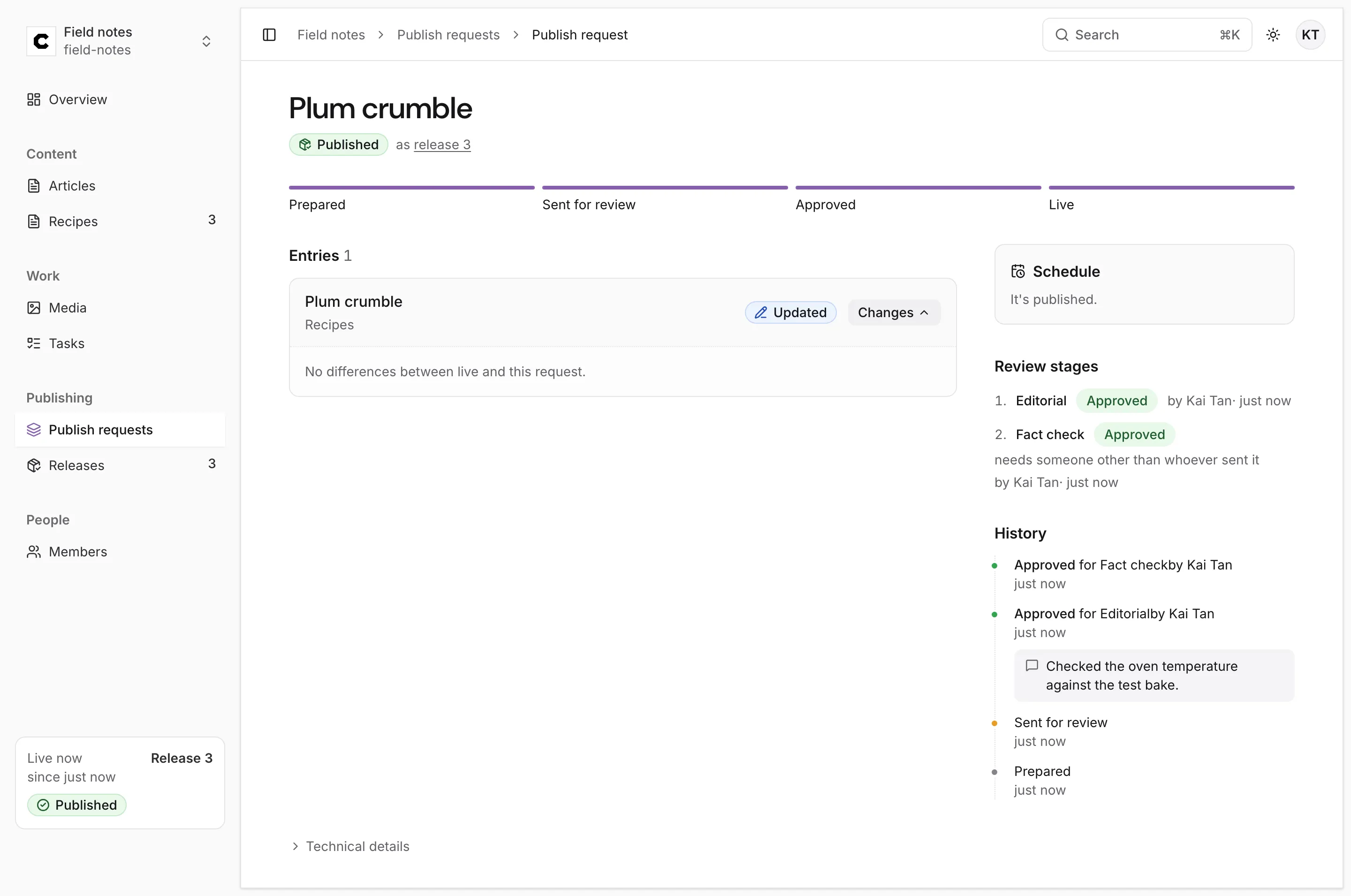
If another release went live while you were looking, publishing stops instead of skipping it: Another release was published first. Check what is live now, then publish again. An approved request can also be scheduled for a later time.
Review stages
Section titled “Review stages”By default one approval publishes a request. Review stages make publishing need a named sign-off at each stage, for example Editorial and Fact check. Owners and developers set them up under Settings → Review stages: see Settings.
- Every stage must approve the request’s current versions, in any order. The list’s order is for people reading it.
- Request changes at any stage holds the whole request until a newer approval at that stage.
- A stage marked Someone other than the sender must approve never counts an approval from whoever sent the request for review.
A request with stages lists them under Review stages, each Waiting, Approved, Changes asked for or Approval expired, and who decided it.
Releases and receipts
Section titled “Releases and receipts”Every publish makes a numbered release, and release numbers only go up. Open Releases in the sidebar to see them, newest first: each with its title, how many entries it changed or took down, who published it and when, and its label. The card at the bottom of the sidebar, Live now, names the release that is live now.
Press a release’s label for its receipt: what happened after it went live. (Its title opens the publish request it came from.)
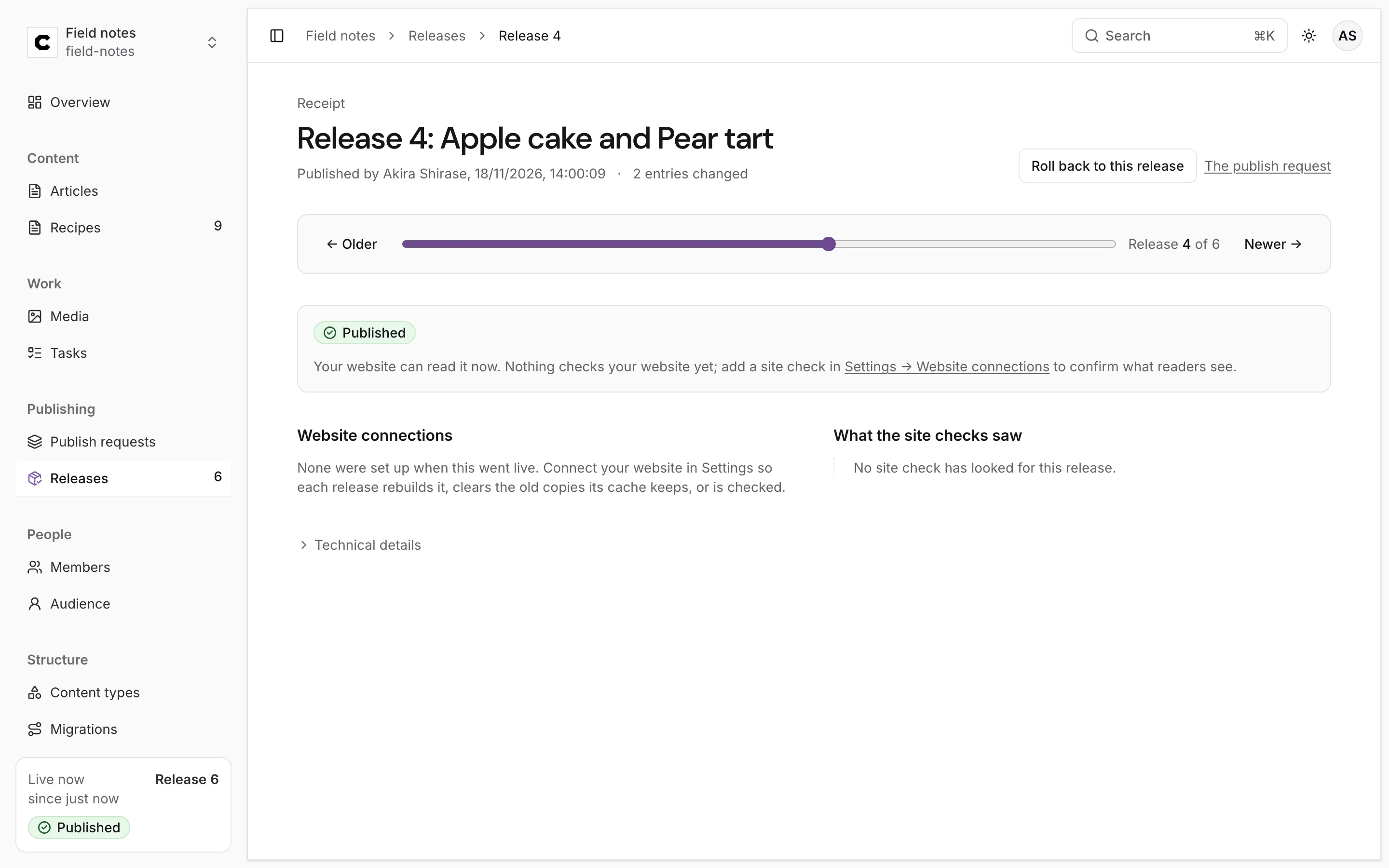
The receipt shows who published it and when, the entries it changed, a slider to step to Older and Newer releases, and one label for how far the release got:
| Label | Means |
|---|---|
| Published | It is live in Colophon, and anything that reads Colophon has it. Nothing has confirmed your website yet. |
| Website update pending | A website connection is still delivering it. The label settles by itself. |
| Verified at 2 locations | A site check read this release, or a later one, on your live site, from that many places. |
| Needs attention | A connection gave up. What needs attention says which, and what to do next. |
Under the label, Website connections lists what each connection did with this release, and What the site checks saw lists every look a site check took. The publish request links back to the request it came from, and Roll back to this release is on every release but the latest: see Rollback.
Take an entry down
Section titled “Take an entry down”On a live entry, press Unpublish (or Ask to unpublish when your role can’t publish). It is a publish request too, whose one item takes the entry down; with Unpublish it goes through at once: Taken down in Release 9. Readers no longer get it; publish it again to put it back.
A taken-down entry is gone from every release, past ones included: the delivery API answers 410 Gone
for it (see Taken-down content). It stays in the Studio as a
Draft, with its history, and publishing it again puts it back. Colophon refuses to take down an
entry that a published entry still links to: see Linked entries.
Was this page helpful?
Either answer opens a short issue on GitHub, so you can say what worked or what was missing.
Colophon home · the product, its blog and how to try it.