

Comments and tasks
Comments and tasks are how people working on the same content talk about it inside the Studio. A comment says something about an entry as it is now. A task is a piece of work on an entry, with someone it waits on and a status.
Comments
Section titled “Comments”Every entry has a Comments tab beside Content and History. The number on the tab counts the comments not yet answered.
-
Open the entry and press Comments.
-
Type in the box (Say what needs changing or checking…), up to 8,000 characters.
-
Press Comment.
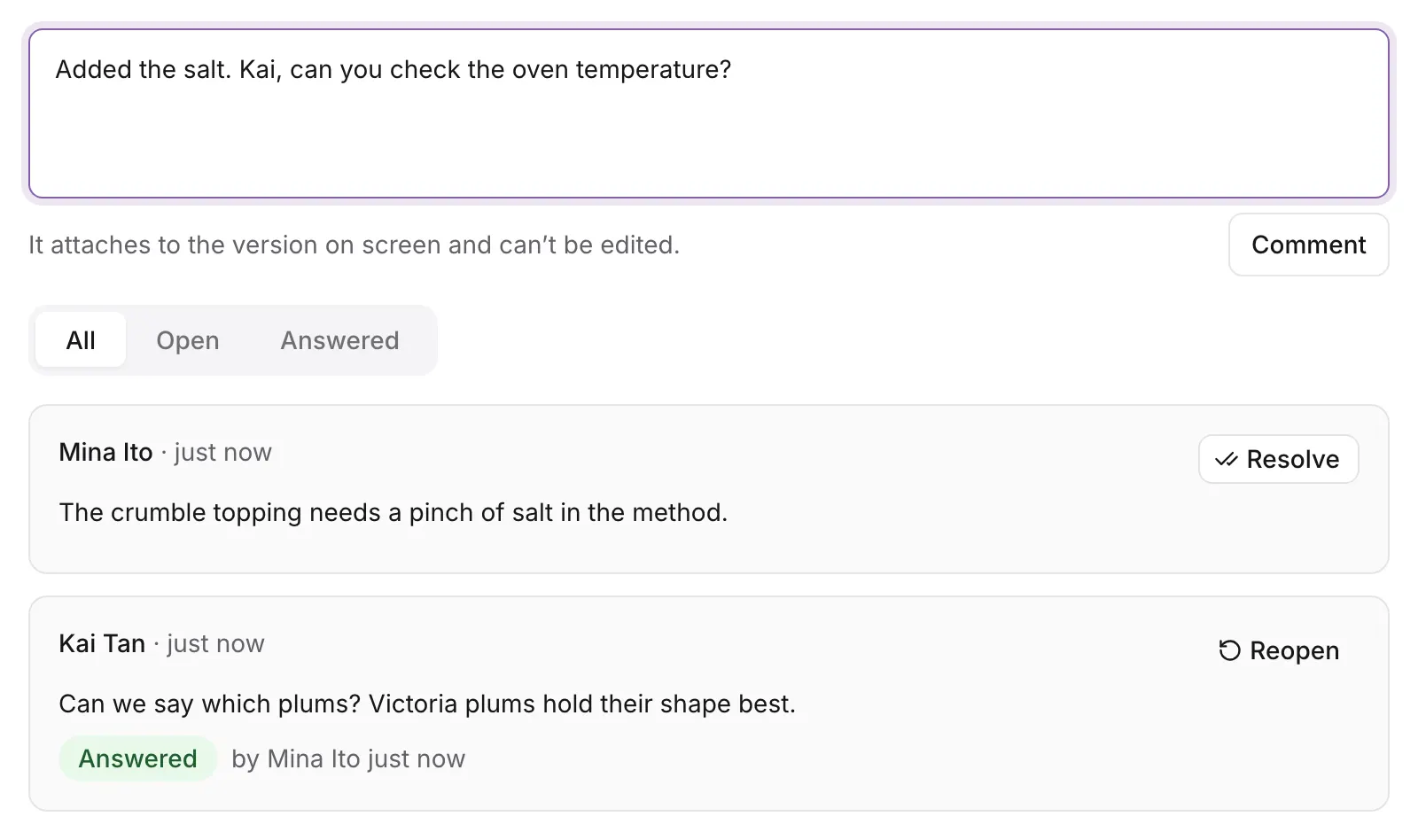
Comments are pinned to a version
Section titled “Comments are pinned to a version”It attaches to the version on screen and can’t be edited. A comment records the exact version of the entry its author was looking at, so what was said always stays tied to what was there. When the entry is saved again, older comments say on an earlier version: open the History tab to see that version (see History and restore).
A comment can’t be edited or deleted. To correct one, write another.
Resolve and reopen
Section titled “Resolve and reopen”- Resolve marks a comment answered. It shows Answered, by whom and when, and leaves the Open list.
- Reopen puts an answered comment back in the Open list.
All, Open and Answered filter the list.
Writing, resolving and reopening comments needs a role that may edit the entry. Anyone who can read the entry can read its comments, including after the entry is deleted.
A task is work that still has to be done before an entry is ready: Add the oven temperature to the method. It is on one entry, may be waiting on one member of the project, and is open, done or cancelled.
Make a task
Section titled “Make a task”-
Open Tasks in the sidebar, under Work, and press New task.
-
Fill in What has to be done (up to 200 characters) and choose the entry it is On entry. Only entries your role may change are listed.
-
Optionally choose who it is Waiting on (A member of this project, or nobody yet.), and the exact On version or On publish request it is about.
-
Press Create task.
The Tasks page
Section titled “The Tasks page”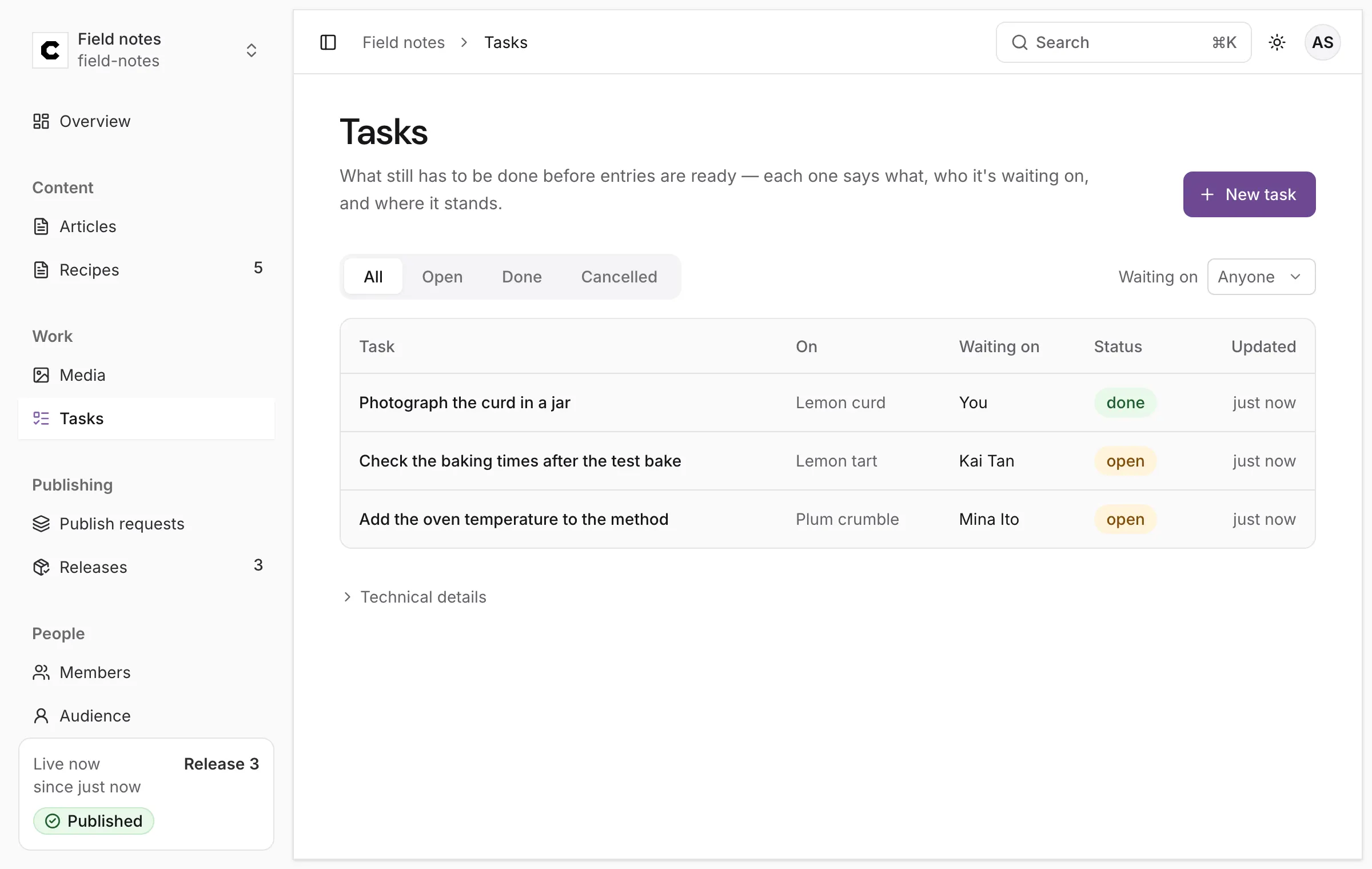
The table shows each task, the entry it is On, who it is Waiting on (You for yourself), its Status and when it was Updated. Filter by status with All, Open, Done and Cancelled, and by person with Waiting on: Anyone, Me or Nobody.
Press a task to open it. There you can:
- rename it with Rename;
- change who it is Waiting on, or set it to Unassigned;
- press Mark done, Cancel task, or Reopen a finished one;
- read and write the entry’s Comments without leaving the page.
A task that is done says who finished it. If someone changed the task while you had it open, your change is refused with Someone changed this task since you loaded it. Look at it again, then try once more., so nobody’s update is lost.
Making and changing tasks needs a role that may edit the entry. A task can only wait on a member of the project.
The project’s Overview also gathers your own work: Your drafts, the publish requests Waiting for your review (for a role that can’t approve: Waiting for review: a publisher approves these), what is Scheduled and the Recent releases.
Was this page helpful?
Either answer opens a short issue on GitHub, so you can say what worked or what was missing.
Colophon home · the product, its blog and how to try it.