

Rich text and images
A Rich text field is for long writing: a recipe’s method, an article’s body. This page is for writers. It explains each toolbar button, how links and images work, and what Colophon stores, so a developer knows what their site receives.
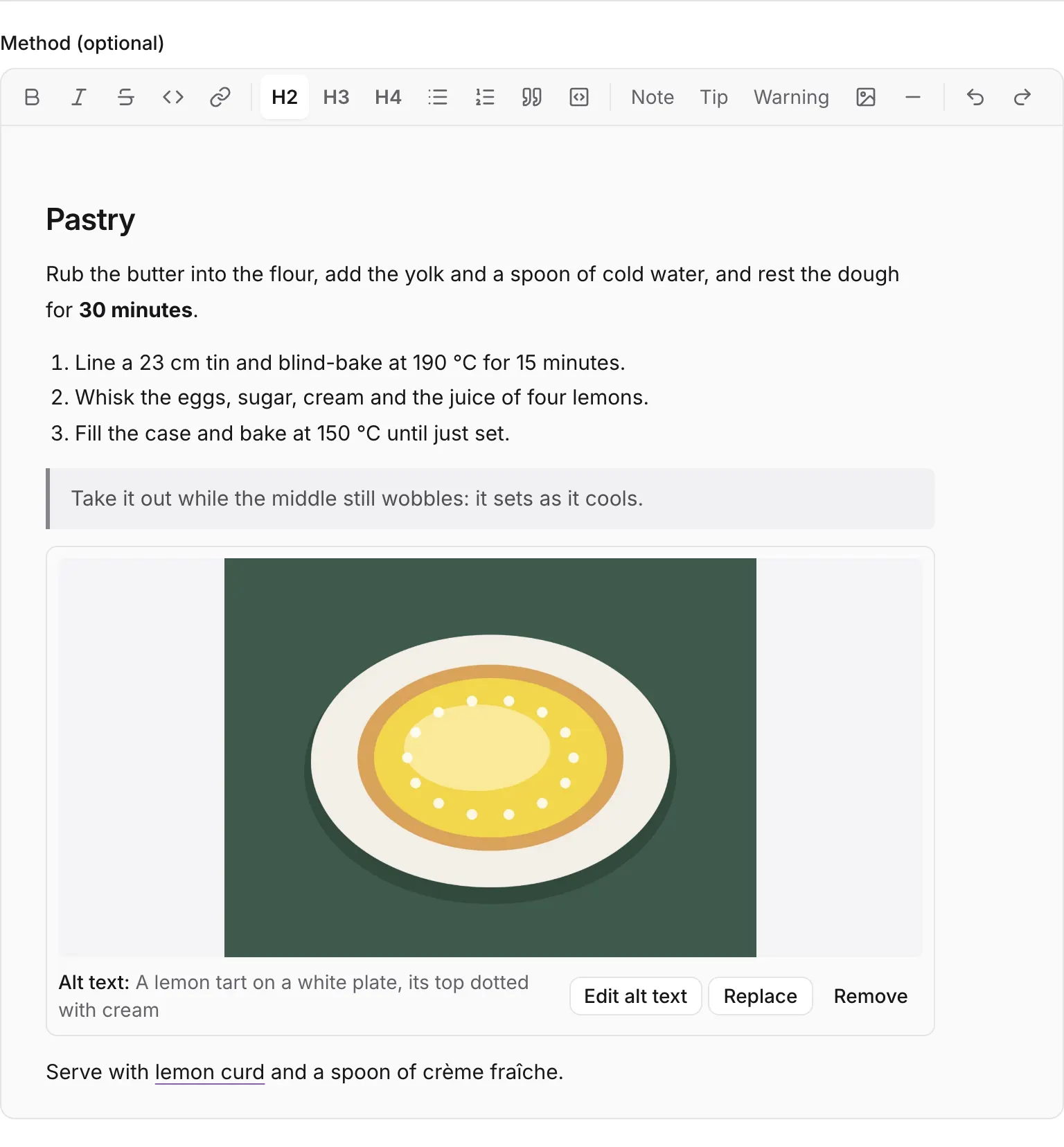
The toolbar
Section titled “The toolbar”The buttons, from left to right. A button looks pressed while the cursor is in text it applies to.
| Button | Does | Keys |
|---|---|---|
| Bold | Bold text | ⌘+B |
| Italic | Italic text | ⌘+I |
| Strikethrough | Struck-through text | |
| Code | Inline code, in a fixed-width font. It can’t be combined with another style. | |
| Link | Opens the link row: see Links | |
| H2, H3, H4 | Headings, three levels. There is no H1: the entry’s title is the page’s first heading. | |
| Bulleted list, Numbered list | Lists, which can be nested | |
| Quote | A block quotation | |
| Code block | A block of code, kept exactly as typed | |
| Note, Tip, Warning | A highlighted block: see Note, Tip and Warning | |
| Image | Inserts an image from the media library: see Images | |
| Rule | A horizontal line between sections | |
| Undo, Redo | Steps back and forward through your edits | ⌘+Z, ⌘+⇧+Z |
On Windows and Linux, use Ctrl where this page says ⌘.
-
Select the words to link and press Link. A row opens under the toolbar.
-
Type the address: a full web address (
https://…), an email link (mailto:…), a path on your own site that starts with/(/recipes/lemon-curd), or a fragment on the same page (#pastry). -
Press Apply.
To change a link, put the cursor in it and press Link again; the row shows the current address. To remove it, clear the address and press Apply.
Anything else is refused on the spot: Only https:, http: and mailto: links, paths starting with /, and #fragments are allowed. That keeps scripts and look-alike addresses out of your pages.
Note, Tip and Warning
Section titled “Note, Tip and Warning”Put the cursor in a paragraph and press Note, Tip or Warning: the paragraph becomes a highlighted block of that kind, for an aside your site shows in its own style. Press the same button again inside the block to turn it back into ordinary paragraphs. A block holds paragraphs only, not headings, lists or images.
Images
Section titled “Images”An image in rich text always comes from the project’s media library, so it is checked before readers can get it and it has alt text.
-
Put the cursor where the image goes and press Image.
-
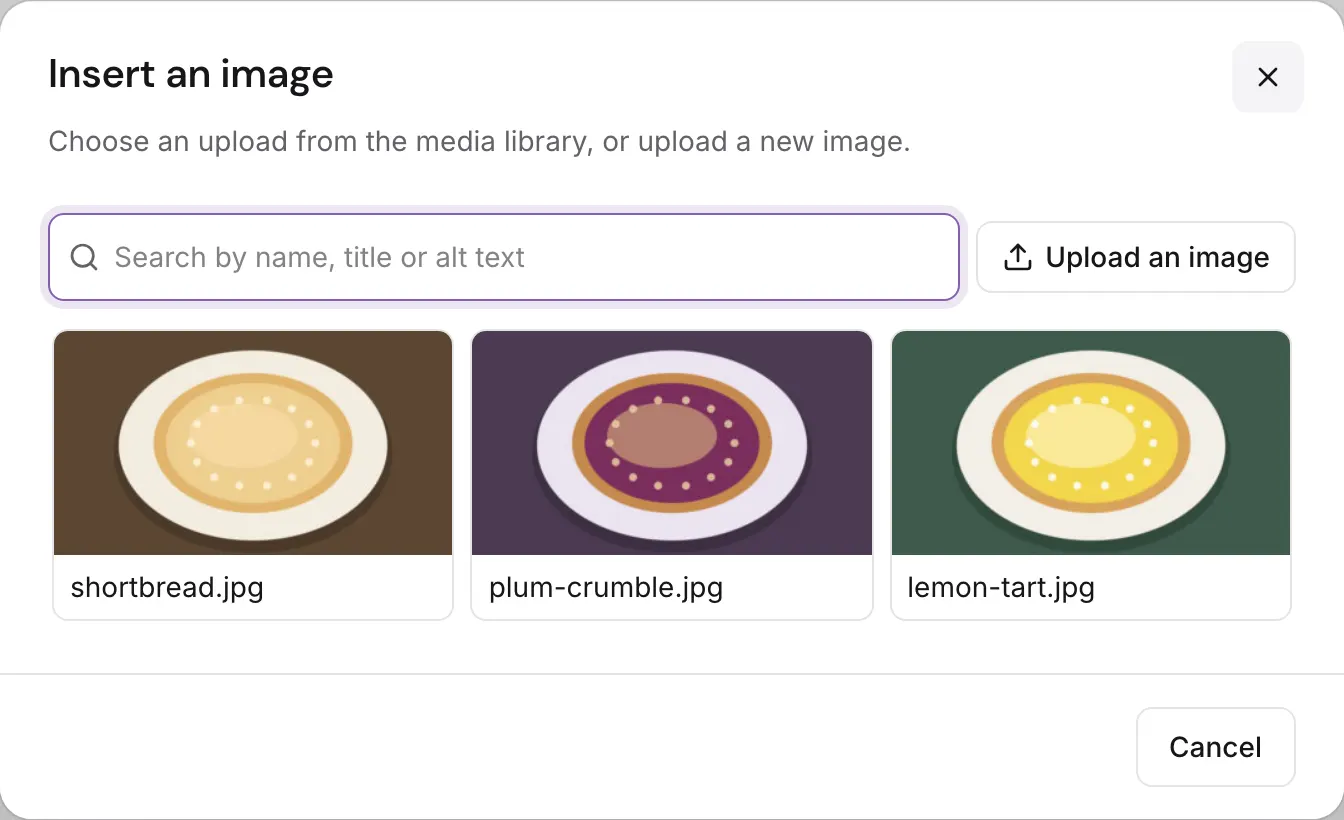
Insert an image shows the library. Search by name, title or alt text, or press Upload an image to add a new file. Pick one.
-
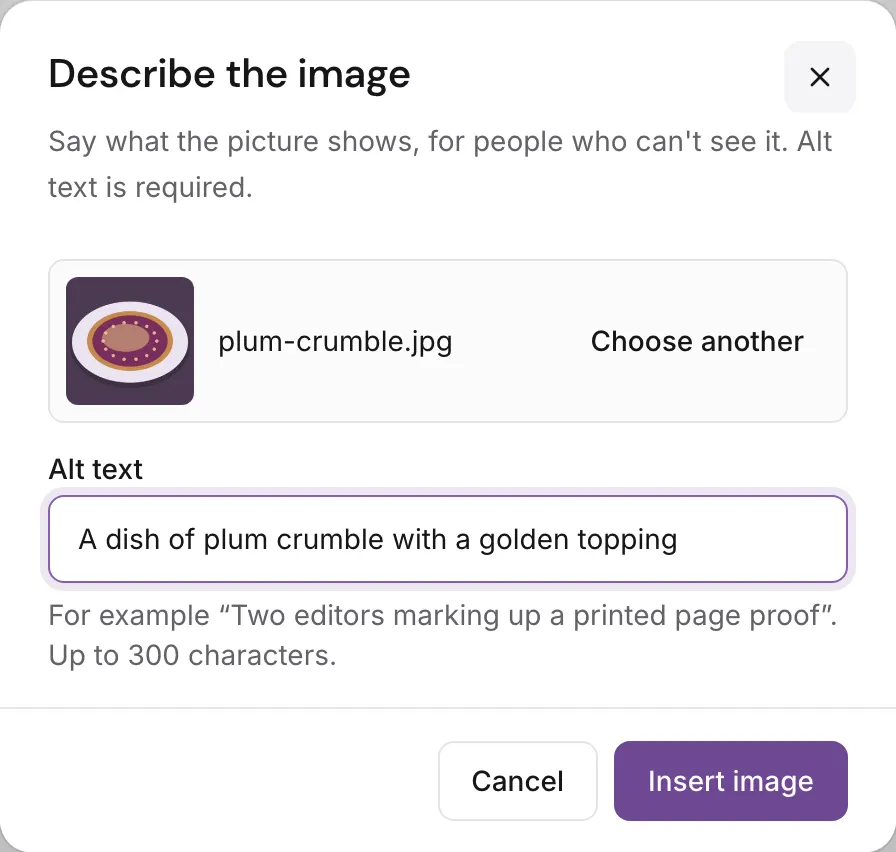
Describe the image. The Alt text starts from the alt text saved in the media library; change it to suit this place if you need to. Alt text is required, up to 300 characters. If it looks like a file name, the dialog says This looks like a file name. Describe what the image shows instead.
-
Press Insert image.
You can also paste an image file into the text, or drop one onto it: it is uploaded to the media library and put where the cursor is. Pasting an image’s web address doesn’t make an image; upload the file.
Each image in the text shows its alt text under it, with three buttons:
- Edit alt text changes the alt text here, not in the library.
- Replace swaps in another upload, keeping its place.
- Remove takes it out of the text. The upload stays in the library.
With the image selected, Enter edits its alt text and Delete removes it.
An upload that is still being checked can be inserted at once (Still being checked. You can insert it now; publishing waits until it is ready.): the entry saves, but it can’t be published until the image is ready. An image whose upload was rejected or deleted is marked Rejected or Deleted (This upload was deleted. Replace it or remove it.). One that names no upload of this project is marked Missing: This image isn’t in the media library. Choose a replacement or remove it. One rich-text field holds at most 200 different images.
What Colophon stores
Section titled “What Colophon stores”A rich-text field is never stored as HTML. It is a JSON document in Colophon’s own format,
colophon/rich-text version 1, which names each block and each style. This is part of the Lemon tart’s
method as the delivery API returns it:
{ "schema": "colophon/rich-text", "version": 1, "doc": { "type": "doc", "content": [ { "type": "heading", "attrs": { "level": 2 }, "content": [{ "type": "text", "text": "Pastry" }] }, { "type": "callout", "attrs": { "tone": "tip" }, "content": [{ "type": "paragraph", "content": [{ "type": "text", "text": "Take it out while the middle still wobbles: it sets as it cools." }] }] }, { "type": "image", "attrs": { "assetId": "01a1ee8e-6684-769a-85bb-4f1044b3a6b7", "alt": "A lemon tart on a white plate, its top dotted with cream" } }, { "type": "paragraph", "content": [ { "type": "text", "text": "Serve with " }, { "type": "text", "text": "lemon curd", "marks": [{ "type": "link", "attrs": { "href": "/recipes/lemon-curd" } }] }, { "type": "text", "text": " and a spoon of crème fraîche." } ] } ] }}Because of that:
- Your site decides how it looks. It turns each block into its own markup. The TypeScript SDK does this for you: see Render rich text and images.
- Nothing unsafe gets in. The format holds only paragraphs, headings (levels 2 to 4), bulleted and numbered lists, quotes, code blocks, rules, images, Note, Tip and Warning blocks, line breaks, and bold, italic, struck-through, code and link styles. Colophon checks every save against it and refuses anything else, so a pasted script or style never reaches a page. Pasting keeps only what the format can hold.
- Images are references. An image names an upload by its id. The delivery API’s
mediagives your site the exact file the release published, its size and its smaller renditions: see Images.
A document is at most 256 KiB, 10,000 nodes and 16 levels deep.
Was this page helpful?
Either answer opens a short issue on GitHub, so you can say what worked or what was missing.
Colophon home · the product, its blog and how to try it.