

Members and roles
Everyone who works in a project is a member with one role, and the role decides what they may do there. This page is for the project’s owners, who invite people and decide what each role may do.
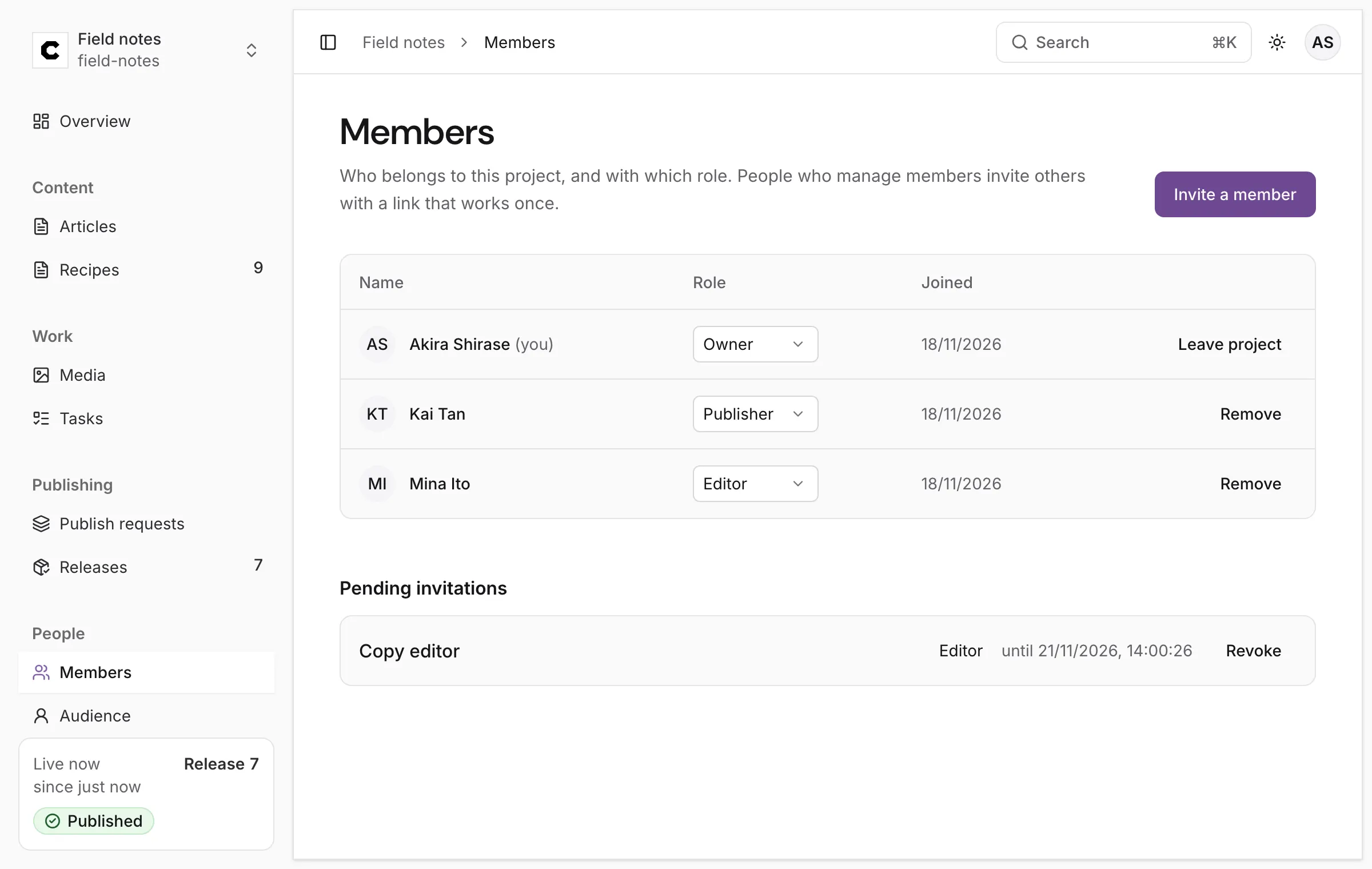
Open Members in the sidebar, under People.
Invite someone
Section titled “Invite someone”-
Press Invite a member.
-
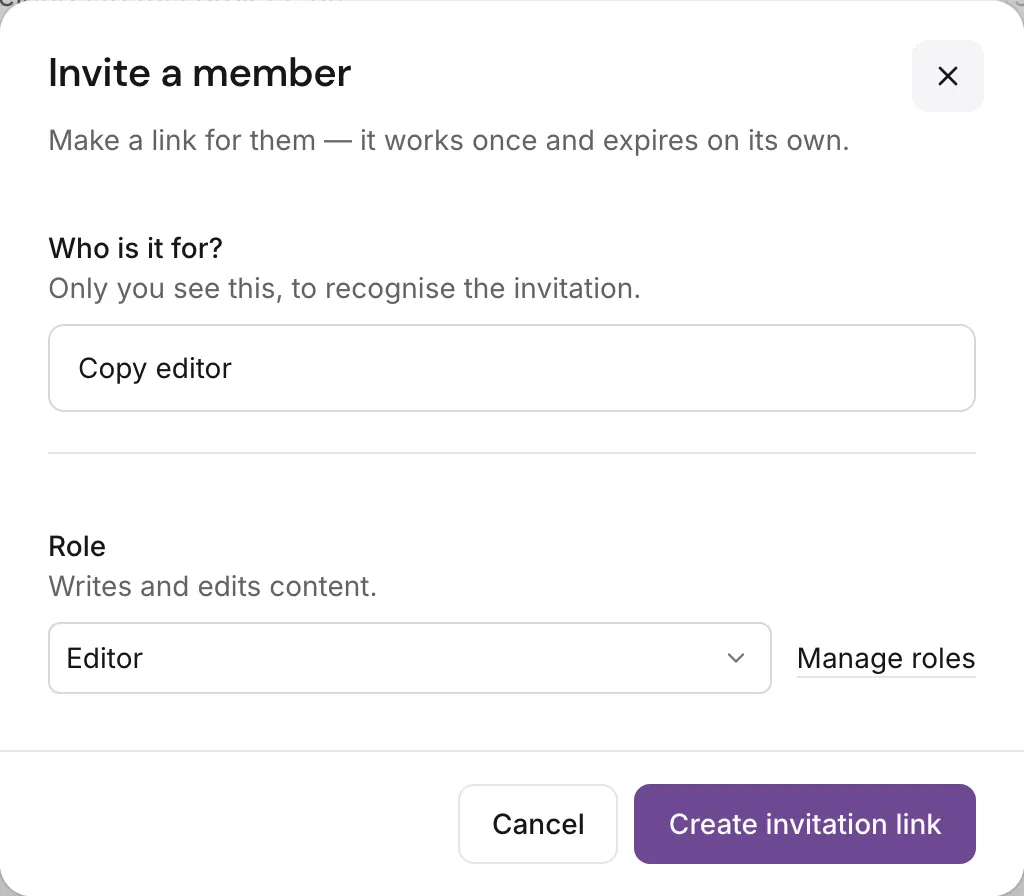
Under Who is it for?, write something that helps you recognise the invitation later (Only you see this), and choose the Role they will have. The role’s description shows under it. If your role may make roles, the list ends with Make a new role…, which makes one first.
-
Press Create invitation link.
-
Copy the link and send it to them yourself, by email or chat. It is shown only now, works once, and expires on its own, after 72 hours.
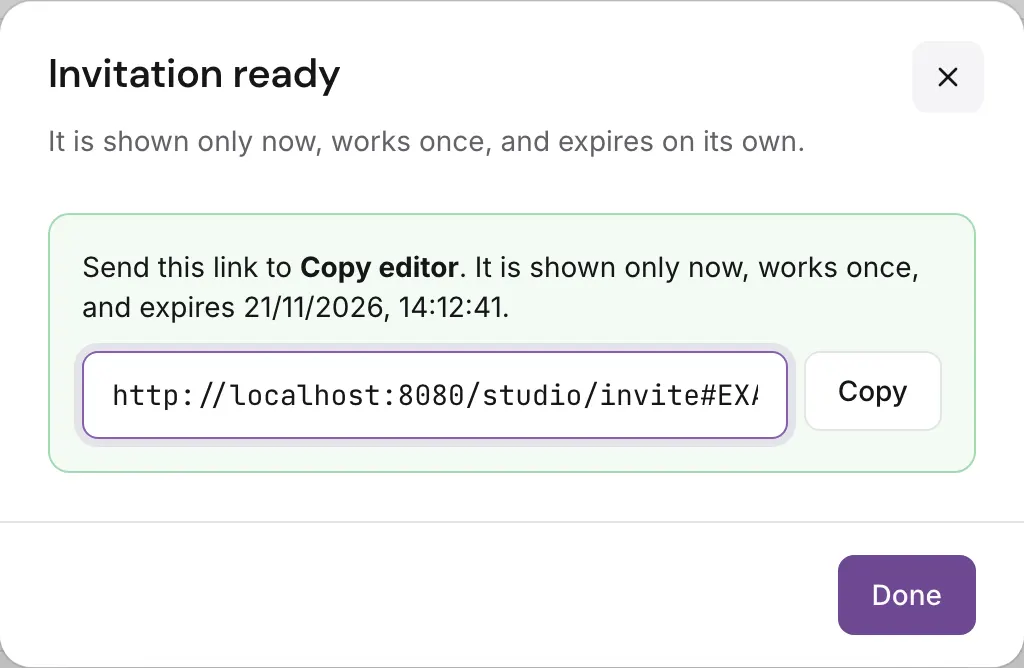
The invitation waits under Pending invitations, with its role and when it expires, until it is used, revoked or expires. Revoke cancels it at once. Colophon sends no email itself.
The person opens the link. If they aren’t signed in, they sign in, or create an account with Create one, and the page then shows the invitation: Akira Shirase invited you to join Field notes as Editor: Writes and edits content. They press Join, or Don’t join. A link that was used, revoked or expired says This invitation has expired, was revoked, or was already used. Ask the person who sent it for a new one.
Inviting needs a role that may Invite people and change their roles (the Owner, by default), and you can only offer a role whose every power your own role has.
The built-in roles
Section titled “The built-in roles”Every project starts with four roles:
| Role | May |
|---|---|
| Owner | Everything. Read, create, edit and delete content; approve and publish; change content types and review stages; manage website connections, members, roles and API tokens; read the activity log; manage the site’s audience. The Owner role never changes. |
| Developer | Read, create and edit content; change content types and review stages; manage website connections. Not approve, publish or delete. |
| Publisher | Read, create and edit content; approve publish requests and publish them. |
| Editor | Read, create and edit content, and ask for review. |
In practice: an Editor writes and presses Ask for review; a Publisher reviews, approves and publishes, and presses Publish on their own work; a Developer builds content types and connects the website; an Owner runs the project. Deleting content is only possible through the API, and of the built-in roles only the Owner may.
Open Settings → Roles to see every role, how many people hold it, and to change them. Developer, Publisher and Editor can be edited; the Owner can only be viewed. Changing roles needs a role that may Make and change roles (the Owner, by default).
Make your own role
Section titled “Make your own role”-
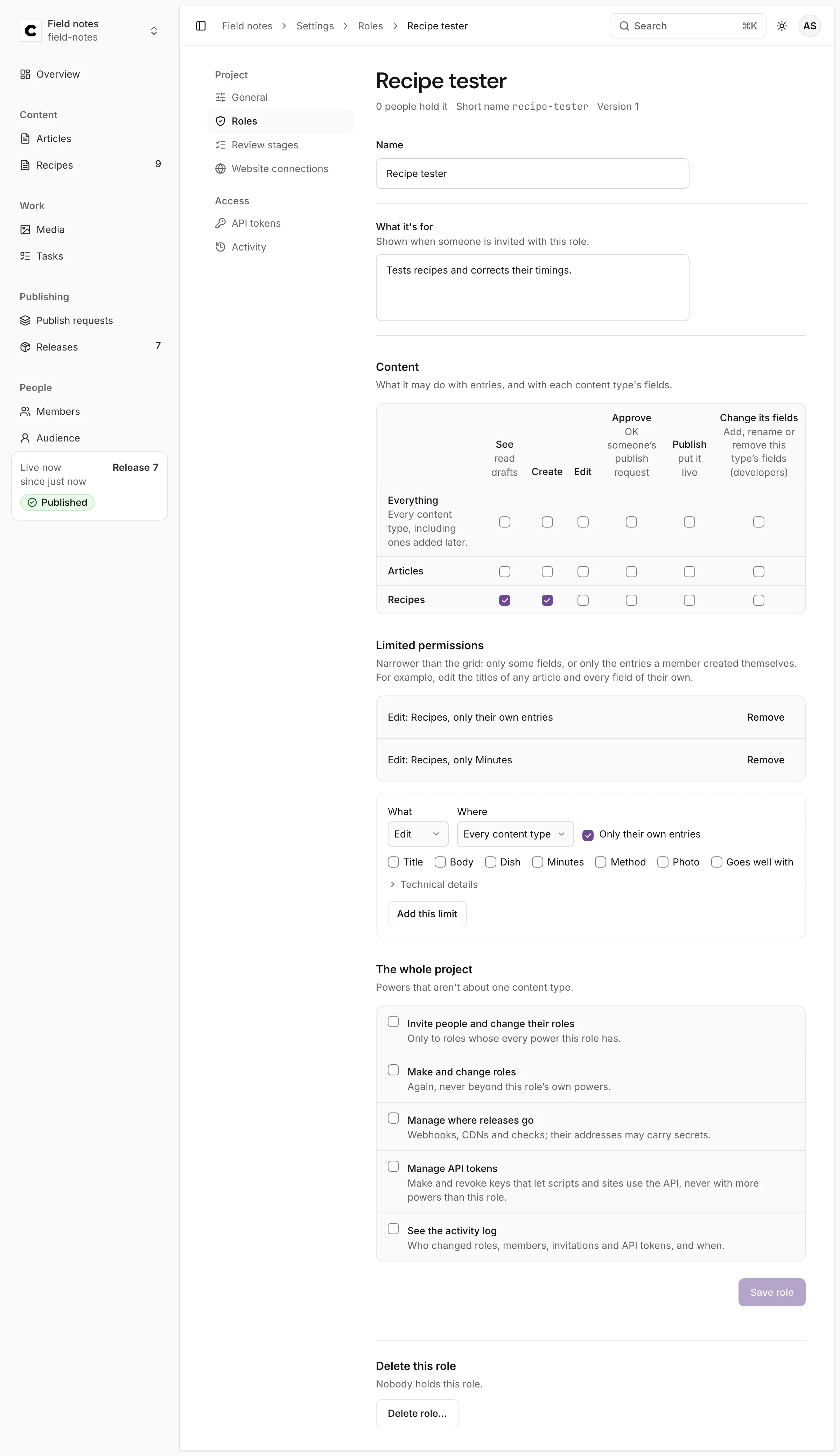
Press New role. Give it a Name (For example Copy desk, Translator or Guest writer.); its Short name is made from the name, and can’t change later. Press Create and choose what it may do.
-
Under What it’s for, describe it. Shown when someone is invited with this role.
-
Under Content, tick what it may do. Each row is Everything (every content type, including ones added later) or one content type; each column is a kind of work: See (read drafts), Create, Edit, Approve (OK someone’s publish request), Publish (put it live) and Change its fields.
-
Add Limited permissions for anything narrower than a whole column: see below.
-
Under The whole project, tick powers that aren’t about one content type: Invite people and change their roles, Make and change roles, Manage where releases go, Manage API tokens, See the activity log.
-
Press Save role.
Limited permissions
Section titled “Limited permissions”Narrower than the grid: only some fields, or only the entries a member created themselves. Choose What (See, Create or Edit) and Where (Every content type or one), then tick:
- Only their own entries: the permission covers only entries the member created. For example, a guest writer who may edit their own recipes and nobody else’s.
- Only these fields: the permission covers only the fields you tick. None ticked means every field.
Press Add this limit. The example role above may create recipes, edit every field of its own recipes, and correct only the Minutes of anyone’s.
In the editor, a member sees what their role allows: fields they may not see are hidden and never sent with their saves, and fields they may read but not change are shown read-only, with (your role can’t change it) after the label.
You can never give a role more than your own role holds. Changing a role takes effect for everyone who holds it. If someone else saved the role while you were editing, your save is refused and offers Load the latest version.
Delete a role
Section titled “Delete a role”Delete this role, at the end of a role’s page, removes it: press Delete role…, then Delete with the role’s name to confirm, or Keep it. While anyone holds the role or a pending invitation offers it, the button isn’t offered and the page says who still does, for example 2 people hold this role. Give them another role, or revoke the invitations, before deleting it. That goes for the built-in roles too: Built in: you can change it, but not delete it while anyone holds it. The Owner role can never be deleted.
Change someone’s role
Section titled “Change someone’s role”On Members, choose a new role in the person’s Role menu. It applies at once, to everything they do next.
Remove someone
Section titled “Remove someone”Press Remove beside the person. They lose access to the project at once; what they wrote stays in the project. To leave a project yourself, press Leave project beside your own name.
The last owner
Section titled “The last owner”A project always keeps at least one owner. Removing the last owner, changing their role, or the last owner leaving is refused: A project must keep at least one owner. Make someone else an owner first.
Every change to members, invitations, roles and API tokens is written to Settings → Activity, which nobody can edit or delete.
Was this page helpful?
Either answer opens a short issue on GitHub, so you can say what worked or what was missing.
Colophon home · the product, its blog and how to try it.