

Preview
Preview shows your unpublished draft rendered by your real website, so you see it with the site’s own layout and styles before readers do. Nobody else can open it: each preview is a private link that ends after a short while.
It has two halves. An owner or developer tells Colophon the site’s preview address once. Then every writer uses Preview on an entry, or Preview on your site on a publish request. The site needs a small preview route, which your developer adds with the SDK.
Set the preview address
Section titled “Set the preview address”For owners and developers (the roles that manage website connections).
-
Open Settings → Website connections. Under Preview on your site, find Preview address.
-
Type your site’s preview route, with placeholders Colophon fills in for each entry:
Placeholder Becomes {code}Required. A one-time code your route trades for access to the draft. {collection}The entry’s content type, like recipes.{id}The entry’s id. {slug}Its URL name, when it has one. {locale}Its language, like en.For example:
https://recipes.example.com/api/preview?code={code}&path=/recipes/{id}. -
Press Save. The card says On and Previews open on your site’s address.
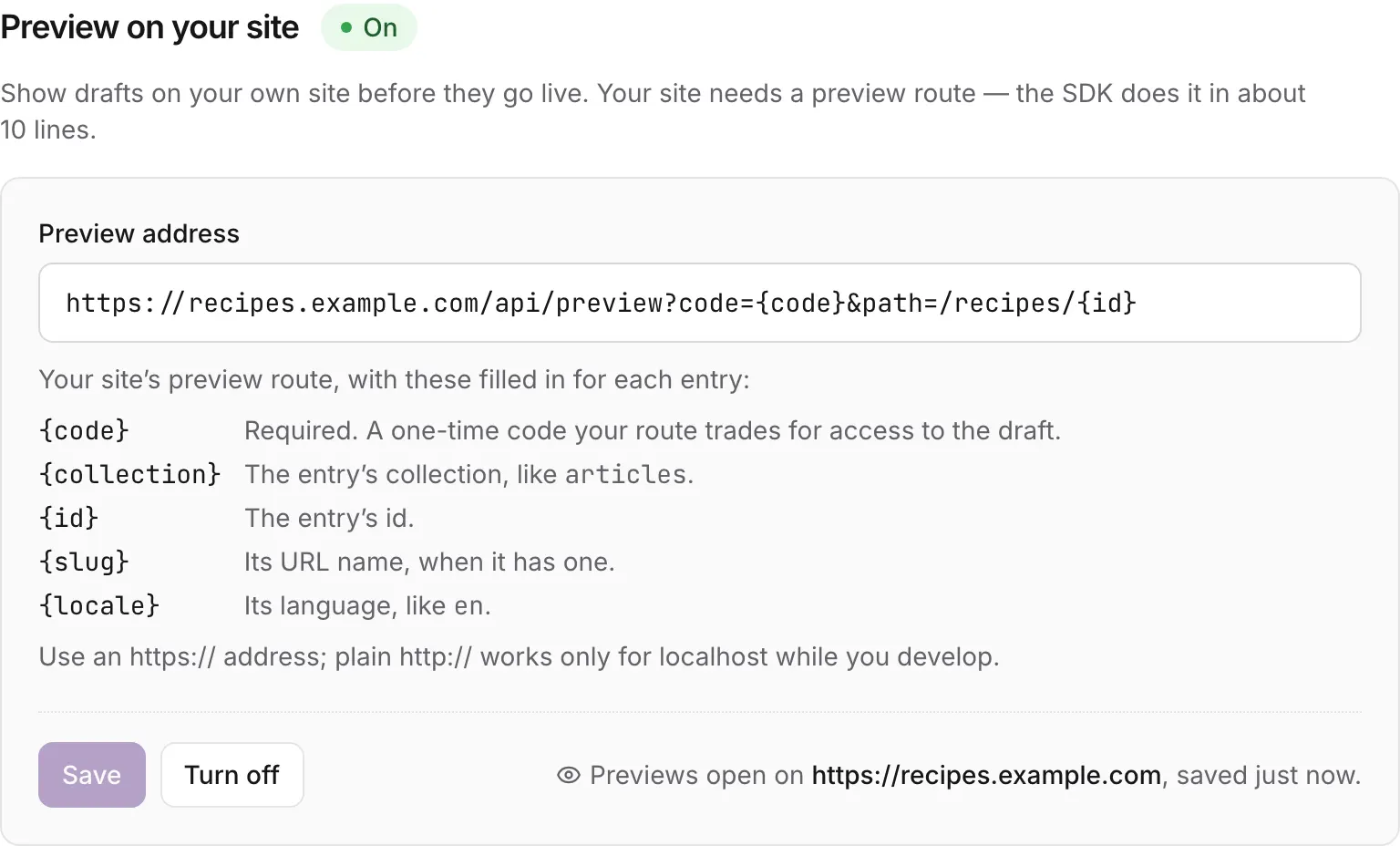
Use an https:// address. Plain http:// works only for localhost on a development server. The
address is at most 2,048 characters. Turn off removes it, and Preview is then unavailable until
someone sets it again. Other members see where previews open, but can’t change it.
Preview an entry
Section titled “Preview an entry”-
Save your changes. Preview always shows the last saved version, never what is only on your screen.
-
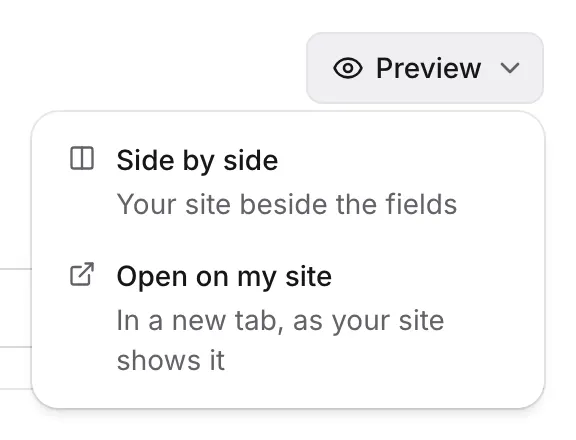
In the entry editor, press Preview above the fields and choose:
- Side by side: your site beside the fields. On a narrow screen this is In this page, which switches between editing and the preview.
- Open on my site: in a new tab, as your site shows it.
-
Keep writing. After each save, the Studio tells the page in the pane, and the page reloads with your change.
The pane has its own toolbar: the preview width (Phone 360 pixels, Tablet 768, Desktop 1280, or Fit the pane), Reload the preview, Open in a new tab and Close the preview. A line over the page says what it shows:
| It says | Means |
|---|---|
| Live preview | Your site confirmed it is showing your draft. |
| Shows your saved draft, then Updated | The page has your last save. |
| Preview is behind: your latest changes aren’t saved | You typed after the last save. It catches up when the save goes. |
| Not confirmed | The page loaded, but didn’t say it is showing a draft. |
| Not showing your draft | The page said it isn’t in preview mode. |
If Preview is greyed out, the editor says why: Preview on your site isn’t set up. An owner or developer sees Set it up, which opens Website connections.
Preview a publish request
Section titled “Preview a publish request”A publish request can be previewed as a whole: every entry in it, at exactly the versions it holds, together.
-
Open the request from Publish requests.
-
Press Preview on your site. It opens in a new tab.
Shows exactly what this request will publish, for 15 minutes. If the request changes, preview it again. Once the request is published, the button goes: the site shows it to everyone.
How long a preview lasts
Section titled “How long a preview lasts”Each preview is a private link made for you. The address the Studio opens carries a one-time code that works once, within 60 seconds; your site trades it for access that lasts 15 minutes. An entry preview is renewed by itself while it stays open in the Studio, up to 8 hours, and ends when you close it. That is why a preview link can’t be passed around: whoever opens it later sees This preview ended, and Start again makes a new one.
When it doesn’t show your draft
Section titled “When it doesn’t show your draft”| The pane says | What to do |
|---|---|
| We can’t tell whether your site loaded the preview | The page didn’t confirm within 10 seconds. Press Open in a new tab, or Check the address. If the site’s preview route isn’t built yet, that is the developer’s step below. |
| Your browser kept the preview cookie out of this frame | Your browser blocks third-party cookies inside the pane, so the site shows the published page. Press Open in a new tab, where it always works. |
| This preview ended | It ran out, or was closed. Press Start again. |
| Preview on your site isn’t set up | An owner or developer sets the preview address. |
What your website must do
Section titled “What your website must do”Colophon never renders your site; it opens your site’s preview route with a one-time code. The developer adds that route once:
- A preview route at the address above. It trades the code for a short-lived preview token, keeps the token in a cookie of its own, and redirects to the page.
- Pages that read drafts with that token, from Colophon’s preview API, instead of the published content.
- Headers that keep previews private: never cached, never indexed, and framed only by your Studio.
- A small script on preview pages that tells the Studio the page is ready and reloads it after each save.
The TypeScript SDK provides all four for any framework: see Draft preview on your own site.
Was this page helpful?
Either answer opens a short issue on GitHub, so you can say what worked or what was missing.
Colophon home · the product, its blog and how to try it.